Smart Inbox
Last updated: September 18, 2026
What is Smart Inbox?
Smart Inbox is your priority conversation view in Slang. Your Smart Inbox is tag-filterable, actionable, and contains both guest data and full call context, so you have a deep understanding of your diners' needs and can reach out in cases that need a human touch.
When you land in your Smart Inbox, your guest calls will display in a prioritized view, with a focus on capturing revenue opportunities. For each call, your team can review the conversation summary, listen to a recording if the conversation was a voice call, and view the full transcript. Your team can add notes on any action taken, and Mark as Resolved.
Smart Inbox is included for Premium tier subscriptions at no additional cost.
How to Find and Use Smart Inbox
Navigate to Smart Inbox from the left-side navigation menu.
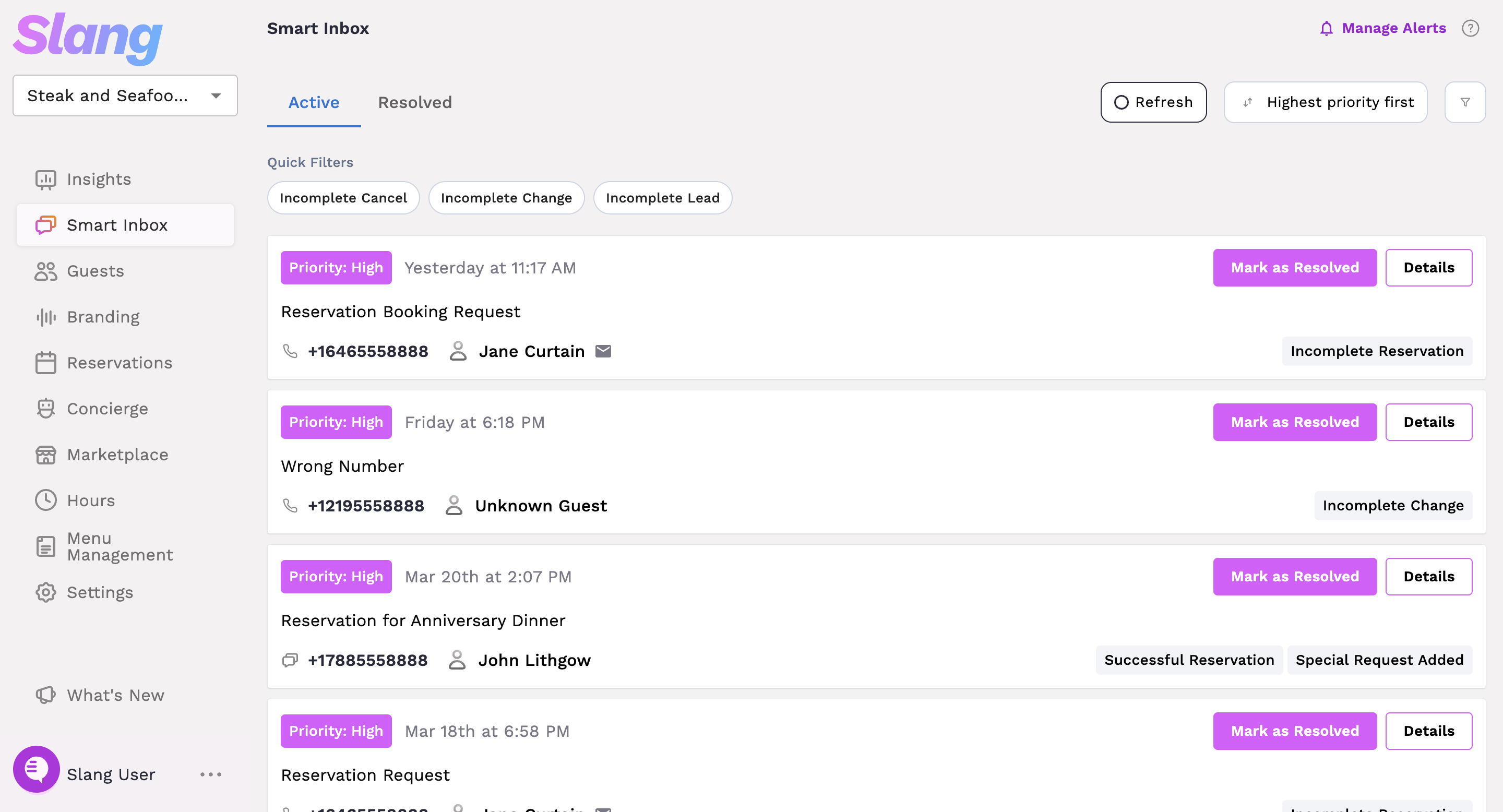
To view the details of a specific conversation, click the Details button. This opens a “drawer” with the guest's information, summary, a voice recording when one exists, and full transcript.
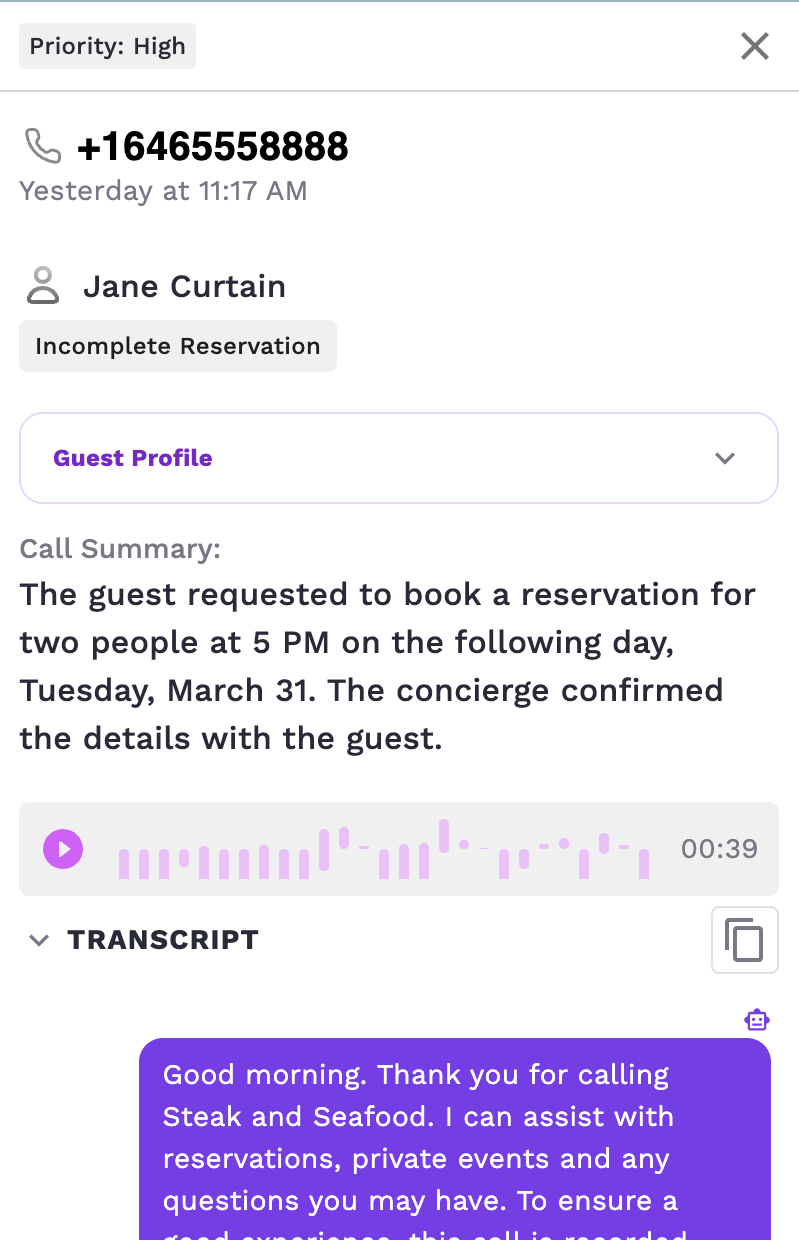
To Mark as Resolved, click the Mark as Resolved button. This opens up a window where you can add optional notes.
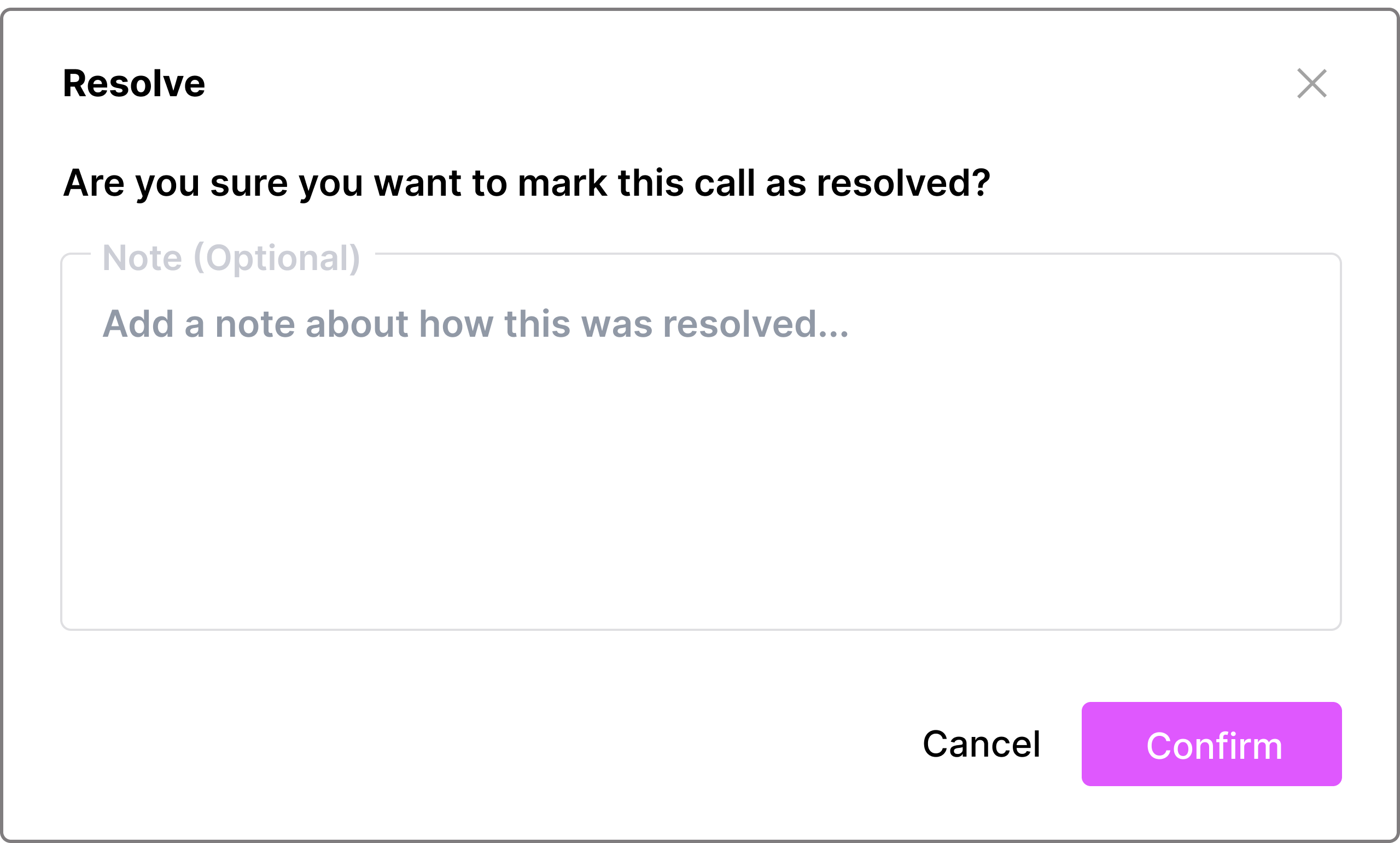
Hit Confirm. This moves the guest entry into the Resolved queue.
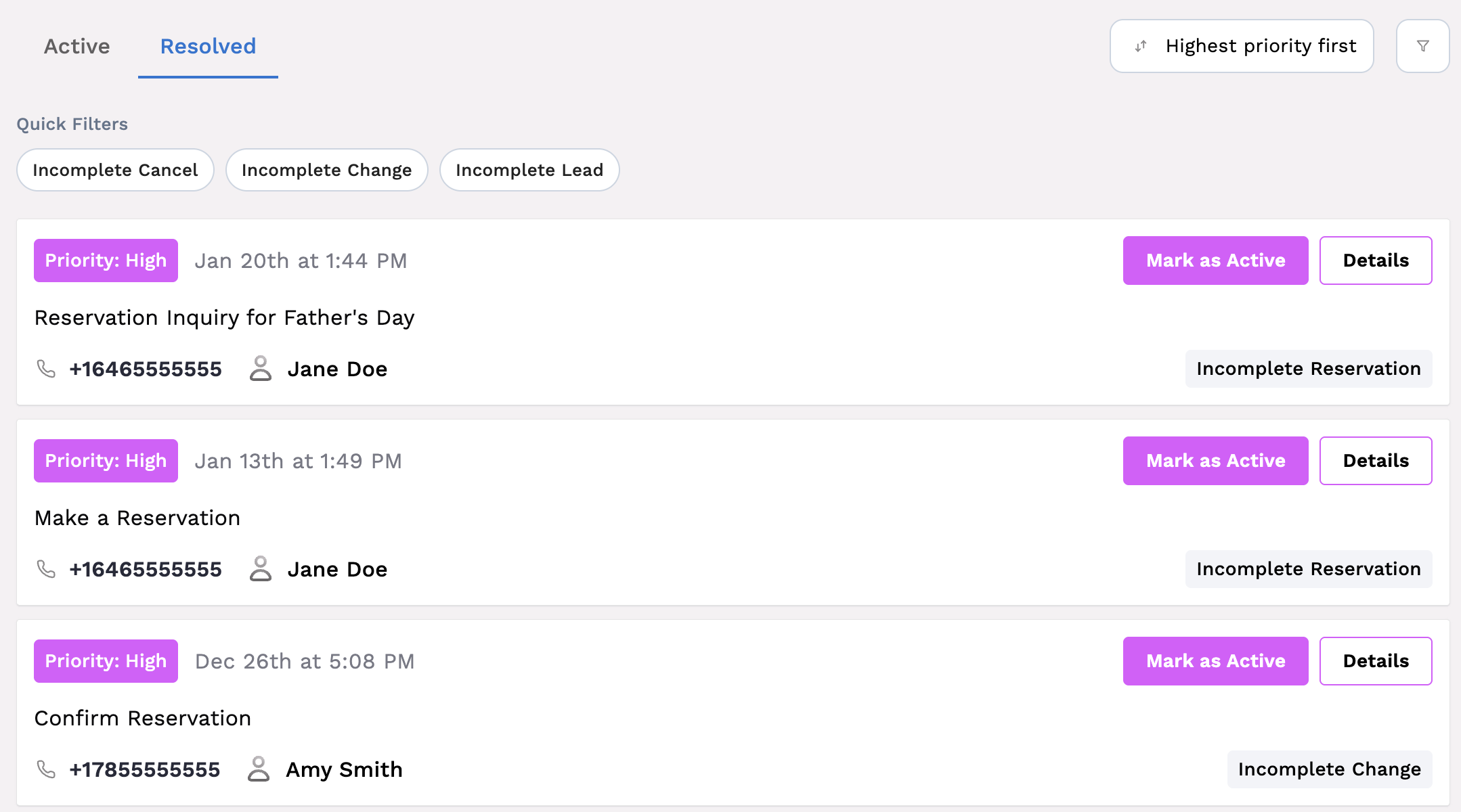
For any guest entry in the Resolved queue, you can “re-open” the entry by clicking Mark as Active. This moves the entry from the Resolved queue to the Active queue.
How do the Smart Inbox High Priority labels get assigned?
Each call is tagged by the topic or outcome of the call. When Slang AI handles the call completely, the call is labeled low priority. When Slang AI can’t complete a task, the call is labeled High Priority so that your team can decide if the call needs a human touch. If the call is transferred and a human successfully completes the task, the tag will reflect the actual outcome rather than Slang's incomplete attempt.
Incomplete tags (high priority): When Slang attempts but does not complete the guest’s request related to your booking or event leads integrations for any reason, these calls are tagged as Incomplete because they may require review.
Incomplete Reservation
Incomplete Change
Incomplete Cancel
Incomplete Lead
Missed Call: When a call is transferred and no human picks up, this tag is applied.
Voicemail Recorded: Stacks with the Missed Call tag when a voicemail is left. The voicemail audio and transcript are included in the conversation record.
Party Size Too Large: When a guest attempts to change a reservation by increasing party size, and that party size is bigger than allowable, this tag is applied. This tag will be shown alongside Incomplete Change.
Negative tags (high priority): When a caller expresses that they have a complaint or specifically mentions food poisoning, these will be tagged and enqueued at the top with other High Priority calls.
Complaint
Food Poisoning
Successful tags (low priority): When Slang AI completes the guests’ request related to your booking or event leads integrations, your team can rest assured that the task has been handled.This also applies when a transferred call results in a human successfully completing what Slang could not — the tag will reflect the resolved outcome.
Successful Reservation
Successful Change
Successful Cancel
Successful Lead
Special Request Added: This tag is applied when a caller books a reservation and includes a special request, in case your team wants to review the request.
Note: Customers who have opted out of recordings for staff transfers will not have access to Missed Call tags, Voicemail Recorded tags, or voicemail audio and transcripts. Please see our Account Settings page for information on controlling your audio settings.
How can I use the Smart Inbox filters?
Some High Priority tags are Quick Filters at the top of the Smart Inbox for easy access:
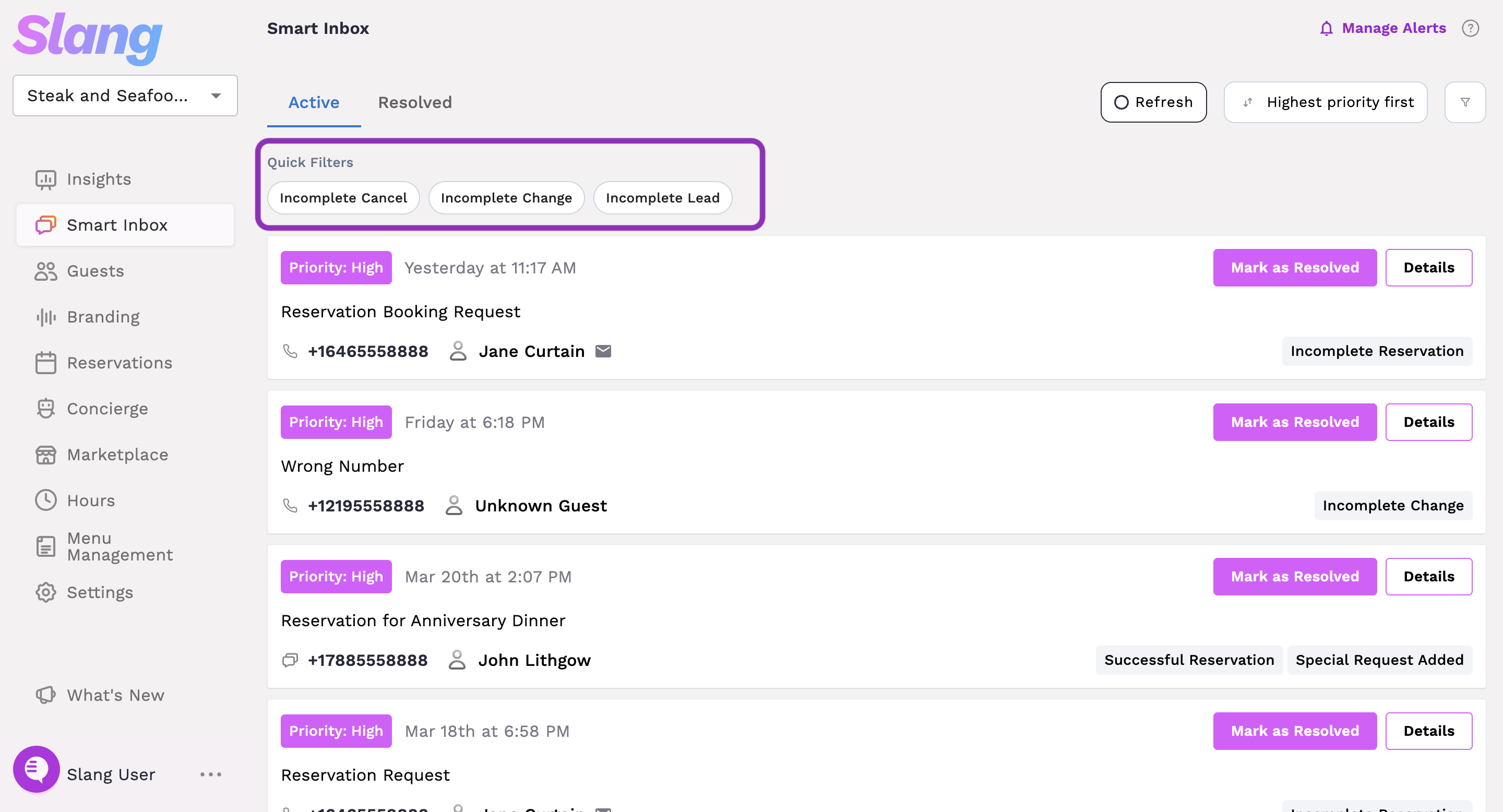
You may also see Call Topic tags on conversation records, like Catering, Seasonal Events, Private Events, etc. All of these tags can be found in the expanded filter menu, along with a custom date range selection. You can also select multiple tags to narrow your search.
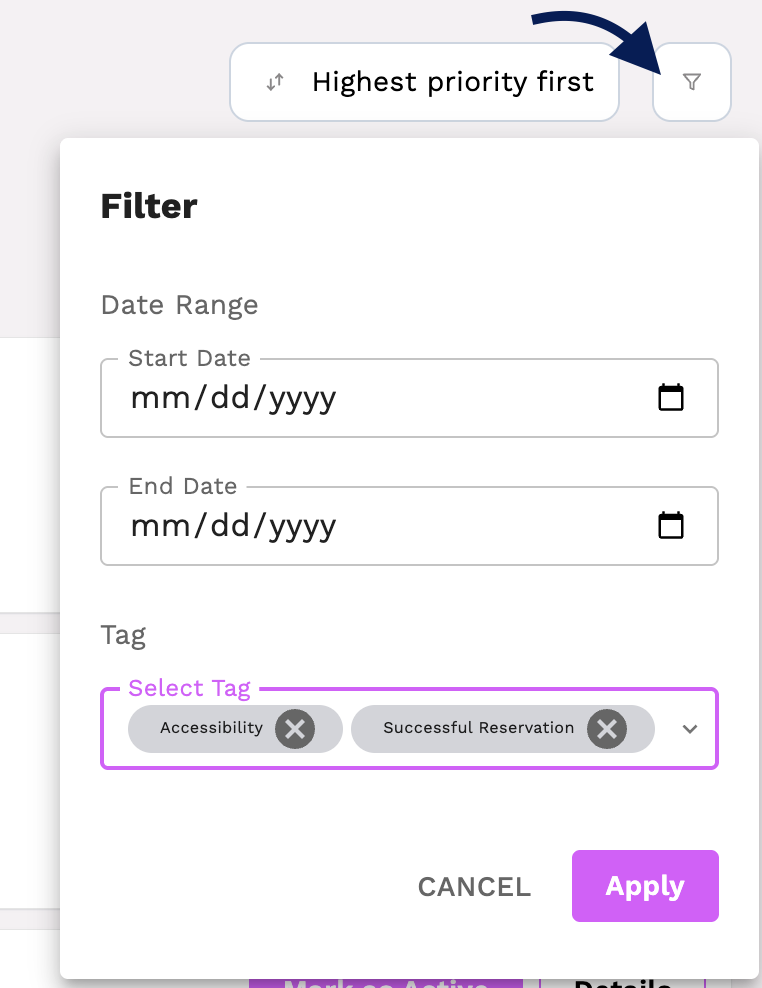
For example, if you want to know if any callers booked a reservation and asked about seating that was wheelchair accessible, you can filter by Successful Reservation and Accessibility to ensure you have them assigned to an appropriate dining area: Reminder: every tag is filterable and can be configured as a Conversation Topic Alert.
Is Smart Inbox updated live as conversations come in?
When a conversation ends, via a voice call or SMS, the conversation record will be available in Smart Inbox. All you need to do is hit the Live button at the top of your inbox to automatically bring in conversations as they occur. The icon will change from saying "Live" to showing a green countdown when active.


If you filter your Inbox, the automatic refresh will pause so that you can maintain your filtered view. If you clear the filters, just click on Live again to start live updates.
Can I set up real-time alerts for important calls?
Through Conversation Topic Alerts, you can set up email or SMS alerts for any of the filterable tags in Smart Inbox. You'll find the widget to manage Conversation Topic Alerts on the Slang Settings page.
Click here to read more about Conversation Topic Alerts.
What User Permission levels can access Smart Inbox?
All permissions levels, including Viewer, can see the Smart Inbox queue, Mark as Resolved, and add notes.
If you’d like to give functionality for a host or manager to interact with Smart Inbox, set them up with Viewer-level user permissions. More on setting up User Permissions here.