Direct Text
Last updated: August 29, 2026
Introduction
With Direct Text, guests can pick up their phones, text your restaurant’s voice AI, and have a fully interactive conversation.
Guests can book, change, cancel, submit a private events lead, and ask questions, completely over text message, in real time. Anything they can do over the phone, they can do in text.
All Direct Text sessions show up in Smart Inbox, just like your phone calls do, so your team has full visibility into every guest interaction across all channels.
How Does It Work?
As an operator, you can enable Direct Text with a simple toggle in the Slang dashboard. When Direct Text is enabled, your restaurant’s Slang phone number becomes both a voice and text destination. Direct Text exclusively uses your Slang phone number.
From a guest perspective, guests will need to dial the Slang phone number and initiate the session. Legally, guests have to consent before the conversation can continue. Here’s what that consent messaging looks like:
Before we chat, please know that I’m an AI automated system. Standard message rates may apply. Reply Y to continue.
Once the guest consents, the concierge can answer the same questions as the voice experience.
Escalation Handling
If a guest asks to speak with a person during a text session, Slang can respond in one of three ways, depending on how you have configured your escalation preference:
Tell guests to go online, and include a link to your website
Tell guests to email you, and include the email address
Tell guests to call you, and provide your public phone number
Opt-Out Handling
Guests can text STOP, CANCEL, END, QUIT, or UNSUBSCRIBE at any time. These keywords are recognized and handled automatically — no additional configuration is needed on your end.
Smart Inbox Integration
Text sessions appear in Smart Inbox, tagged as text-only interactions. They follow the same tagging and prioritization rules as call records, so your team can review, respond, and track text conversations from the same place they manage everything else. (Note that text message sessions do not contain audio.)
How Do I Set It Up?
Go your Settings page in the ilove.Slang.ai dashboard.
Scroll down to the Direct text component at the bottom of the page.
Toggle on Direct Text.
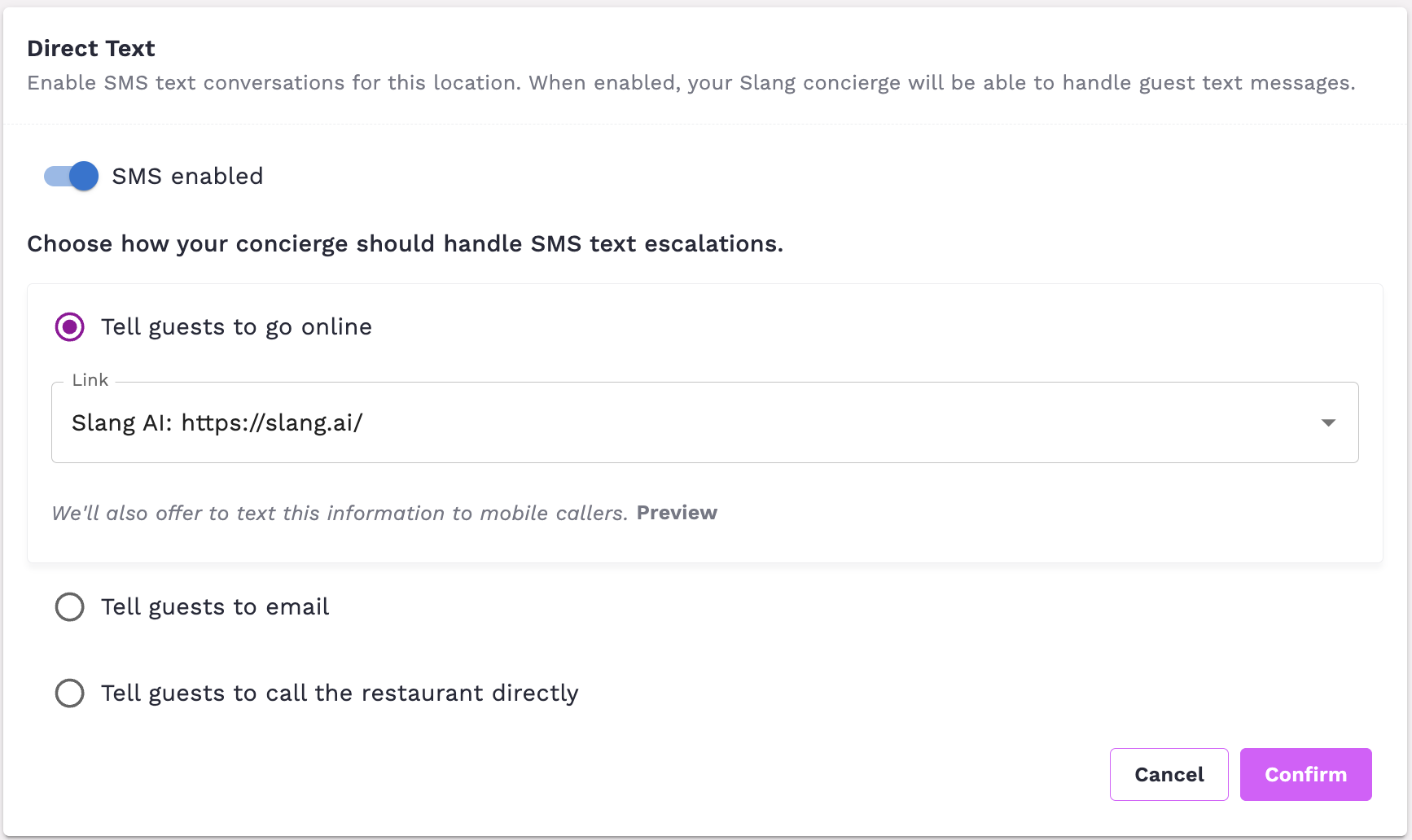
Choose how you want to direct callers if they ask to be connected to a person.
After you make your radio button select and provide the contact info, hit Confirm.
How Do I Know It’s Working?
After enabling Direct Text, you can text your Slang phone number (a question or a simple “Hello” will do). Consent by sending a Y when prompted, and then chat away.
If your concierge is not responding to texts, double-check that the Direct Text toggle is enabled in Settings and that your escalation preference has been saved.
Frequently Asked Questions
Can guests text my public-facing number if it’s forwarding to Slang?
No, Direct Text works exclusively with your Slang phone number only. Direct Text will not work for the public-facing forwarding number, so if your guests text it, they are likely to hit a “dead end” and get no response.
(Carriers require special settings to enable a number to receive both calls and texts. Slang can arrange these settings for Slang numbers, but we are not able to influence the settings of forwarding numbers.)
How can I help guests learn about Direct Text?
We recommend adding this information to your website’s contact page, and we encourage you to promote it on your website, emails, or in-restaurant materials. Just make sure to use the Slang number shown in your location dropdown, as that is the number enabled to Direct Text.

Where do text conversations show up in my dashboard?
Text sessions appear in Smart Inbox, tagged as text-only interactions with a chat bubble icon. They follow the same tagging and prioritization rules as voice call records, so your team can review them in the same place they manage all other guest interactions.
In this image, the top record is chat, indicated by the chat bubble icon in the lower left corner.

I sent a text and I don’t see the session in Smart Inbox yet.
Because text message exchanges occur over longer periods of time, Slang usually won't “close the session” for thirty minutes, unless the conversation concludes and the agent says goodbye. As a result, a text message record should show up in Smart Inbox within 30 minutes.
Is Direct Text available on my billing plan?
Yes, Direct Text is included in all billing tiers at no additional cost.
Is there a separate concierge I need to configure?
No. The same AI “knowledge base” that handles your phone calls also handles text conversations. Your existing topic configurations (reservations, catering, hours, etc.) apply automatically to text sessions. The concierge adapts its language to suit the text format, but the underlying logic is the same.
What happens when a guest texts STOP or UNSUBSCRIBE?
These keywords are automatically intercepted and handled. The guest will be unsubscribed from further text messages from your Slang number. This does not affect voice calls — they can still call the same number as usual. The stop/unsubscribe behavior is managed automatically and requires no action from you.
Is Direct Text available in Australia?
Not currently. Due to regional carrier requirements, Direct Text is not available in Australia at this time. If you are based in Australia and are interested in this feature, please reach out to your Slang account team for updates on regional availability.
Can guests text with the agent in Spanish? (Is Bilingual Support supported?)
Not currently. This is a feature we hope to support soon!
Is it available on Superhost?
Direct text is not available on Superhost.