Getting Started with the OpenTable x Slang Integration
Last updated: October 3, 2026
Let's get your OpenTable account linked with Slang.
Introduction
We are so excited that you're about to free up time for your staff with this groundbreaking OpenTable x Slang integration!
Haven't added the integration to your Slang package yet? Reach out to your account manager or support@slang.ai to get the process started!
The Opentable integration is compatible with Superhost and can handle known and unknown guest booking.
To compare feature sets for reservation platform integrations with Slang, please see this article.
First things First
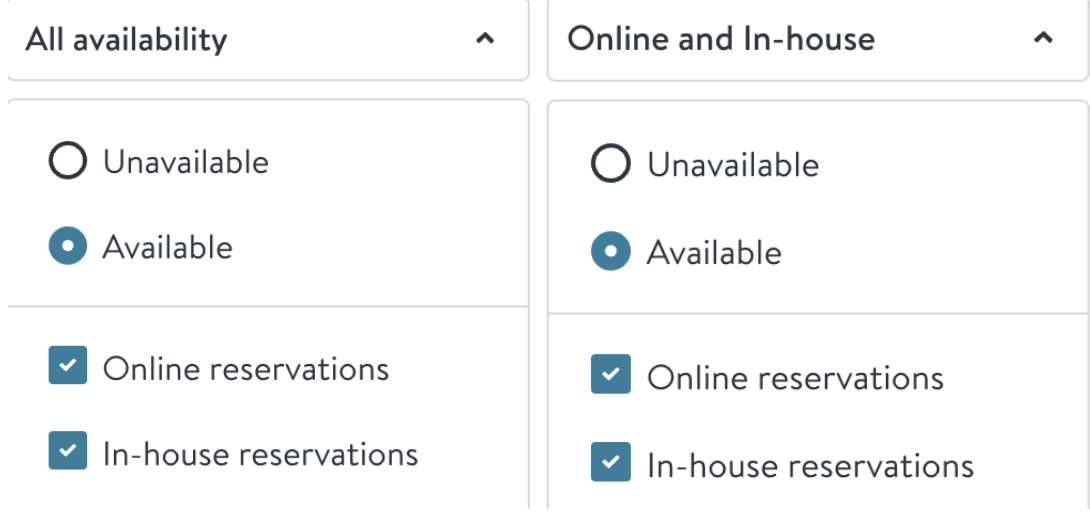
The integration will be booking from your ”In-house reservations” so you can save on cover fees. Additionally, we will be checking your “Online reservations” to ensure we don't book over blocks or closures. When Availability Planning in OpenTable, please ensure to select both and that the drop down selections reads "All Availability" or "Online and In-house" to ensure that Slang can book guests to the shift. See screenshot of the OpenTable user interface referenced in these instructions below:
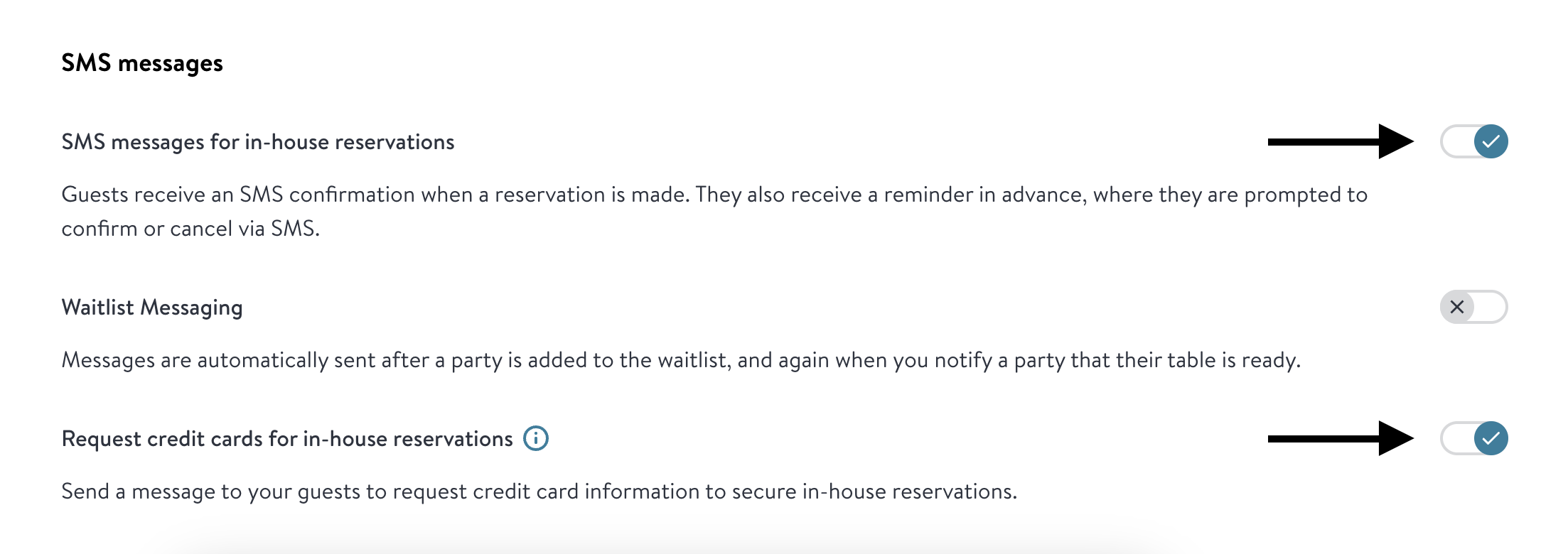
Please double-check that you have these toggles on, directions can be found here. This allows Slang to follow your established Cancellation Policies.
Slang uses the inbound caller's number to fetch guest data from the OpenTable API and identify known guests. If your provider strips or blocks Caller ID Slang won't be able to complete bookings through the integration — calls may transfer to staff unexpectedly instead of completing. Confirm with your phone provider that CLID is passed through on calls forwarded to your Slang number.
Be sure to check your settings via OpenTable and opt-in for SMS messaging before integrating with Slang! If you ignore this step all CC-required bookings will be transferred to your venue.
Set Up
Once the initial items are checked off, set up is simple:
Ensure you have a valid Slang login on hand.
Log into the OpenTable Guest Center and open the Integrations page.
Search for Slang!
Click on the Get Started button on the Slang landing page.
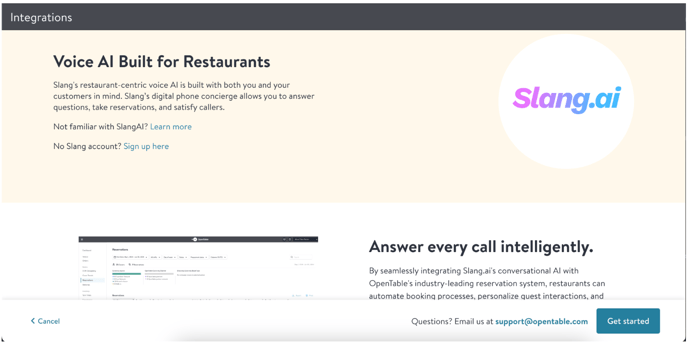
Once you click Connect, you will be prompted to log into your Slang account.
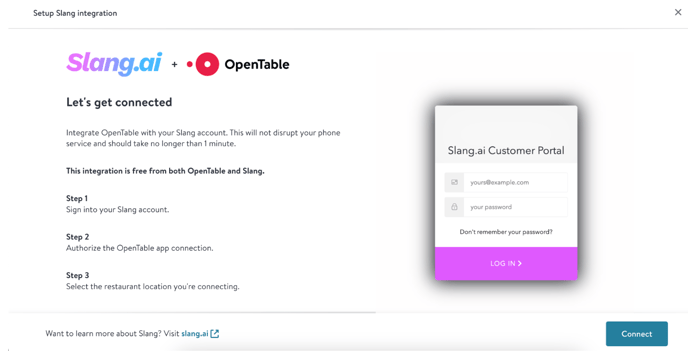
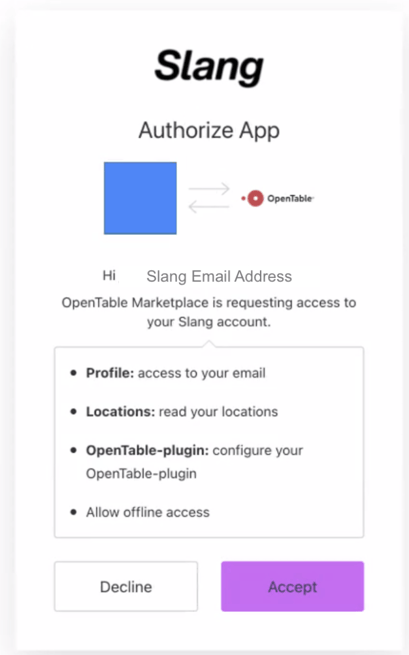
Click Accept!
Select the Slang location that corresponds to the restaurant you're currently logged into in OpenTable.
If you have more than one OpenTable restaurant using Slang, switch locations on the top-left of the OpenTable Guest Center to navigate to the next location's page. This time you'll already be logged in, so it'll be a breeze!
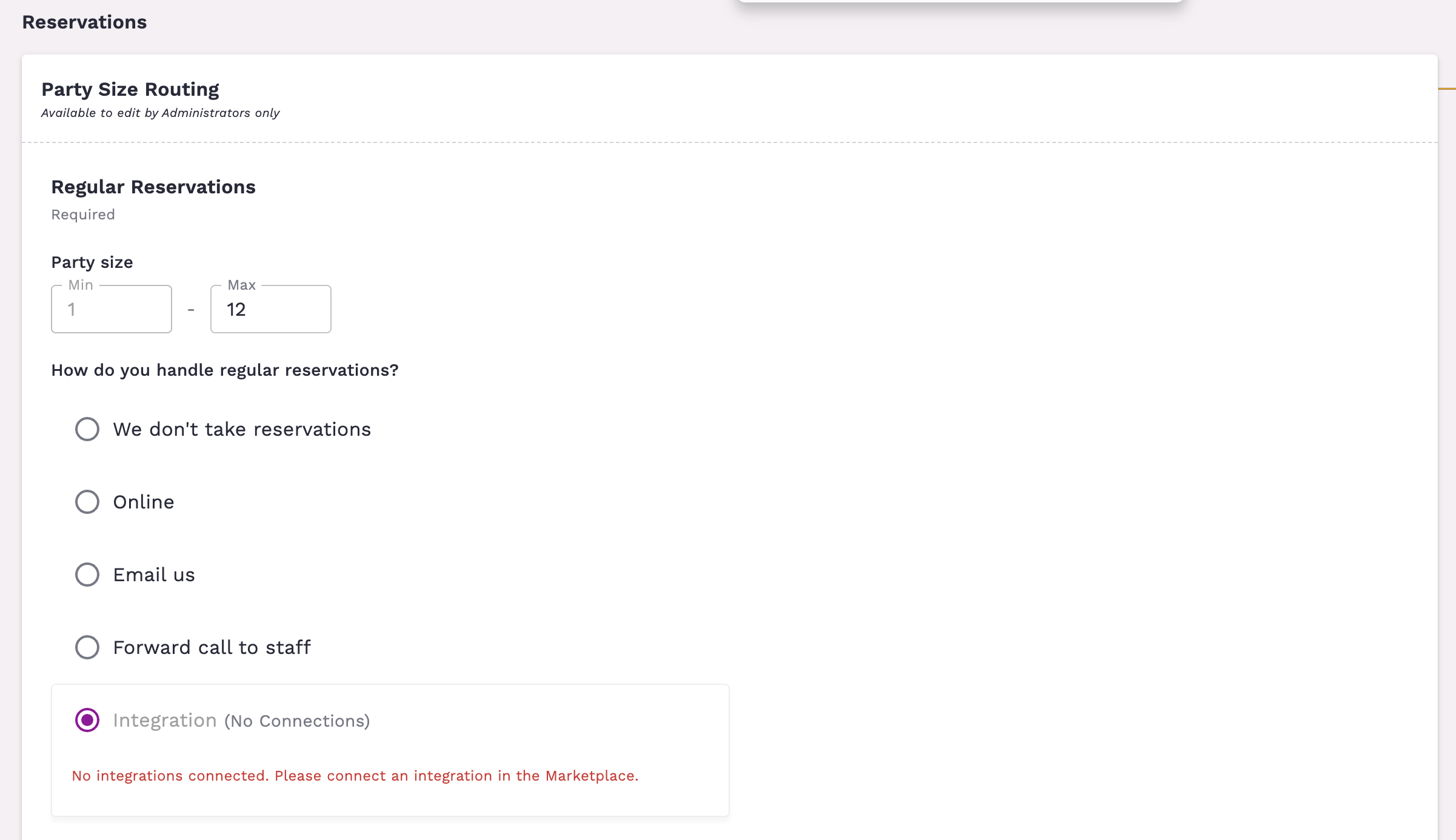
Required: configure the integration under Party Size Routing. Slang cannot book reservations over the phone until this step is complete. See instructions to configure the integration here. Please ensure that you click save at the bottom right hand corner of the page when done configuring.
Recommended: Set up your Conversation Alerts: Once connected, update your Alerts to match your integration. Use Incomplete Reservation instead of Reservation Inquiry — it only fires when a booking fails in OpenTable, so you're notified when action is needed rather than on every inbound inquiry.
See more information on our premium feature Conversation Alerts. Reach out to your account manager and/or suport@slang.ai to upgrade.
Frequently Asked Questions: See our OpenTable FAQ Article for more info
How do I know the integration is connected to the right restaurant?
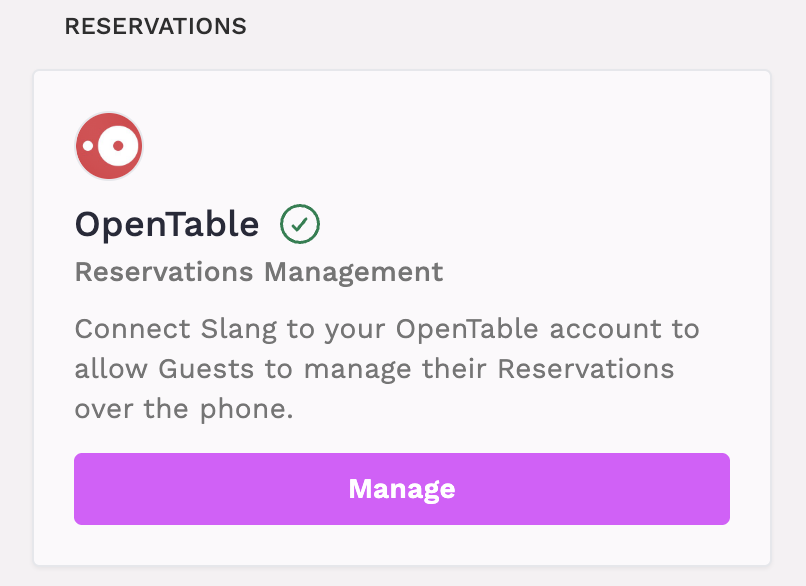
Head to your Slang dashboard at ilove.slang.ai and click on our Marketplace to view and manage your integrations. The OpenTable tile will show a green checkmark when connected, and if you click on "Manage," the fly-out drawer shows you the OpenTable Restaurant ID connected to that Slang concierge! Make sure they match!
I connected the wrong restaurant/I need to disconnect the OpenTable Integration.
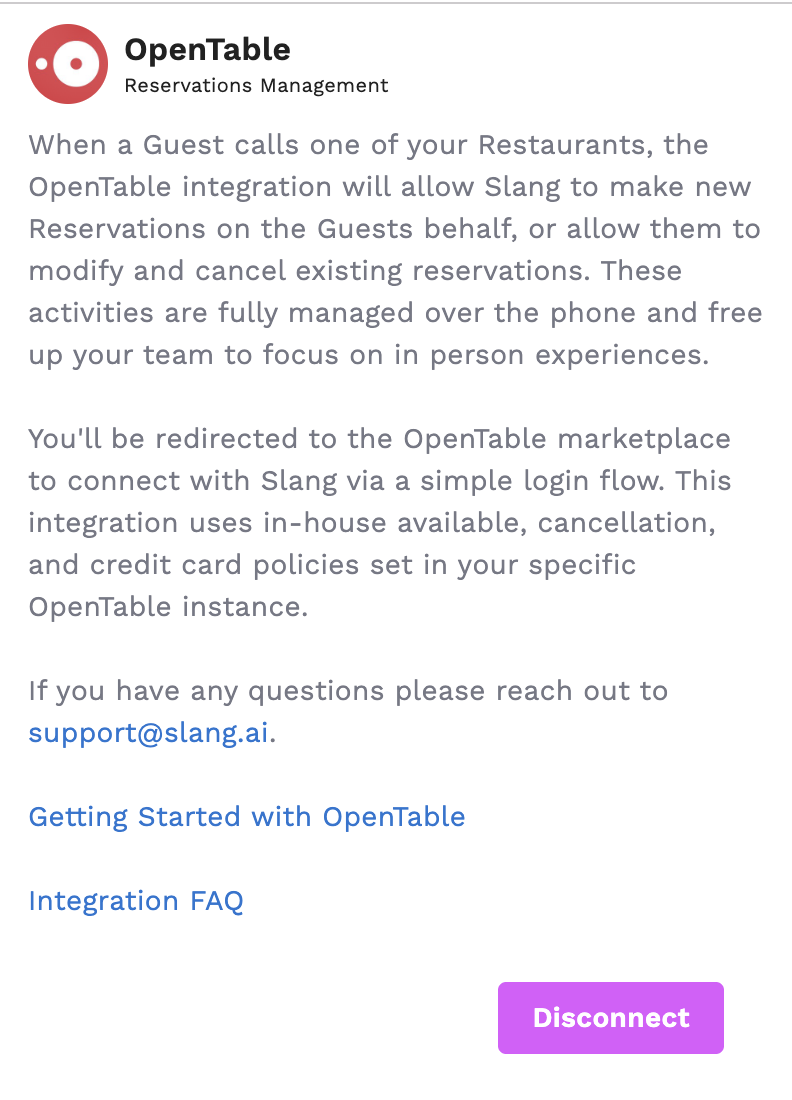
You can disconnect your Slang and OpenTable integration either from the Slang Marketplace, or your OpenTable Guest Center Integrations page.
Slang Marketplace:
Head to the Marketplace in your Slang dashboard.
Click Manage on the OpenTable Integration tile.
Is the OpenTable integration compatible with Superhost?
Yes! The OpenTable integration is compatible with Superhost.
What is the maximum party size that can be automatically booked through the integration?
Click Disconnect on the drawer that opens.
Guest Manager:
Navigate to Integrations.
Click on My Integrations on the top left of the screen.
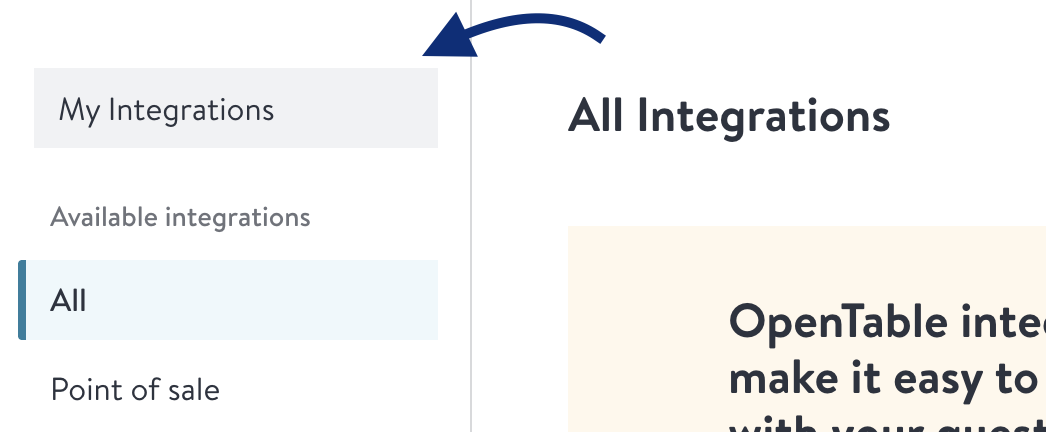
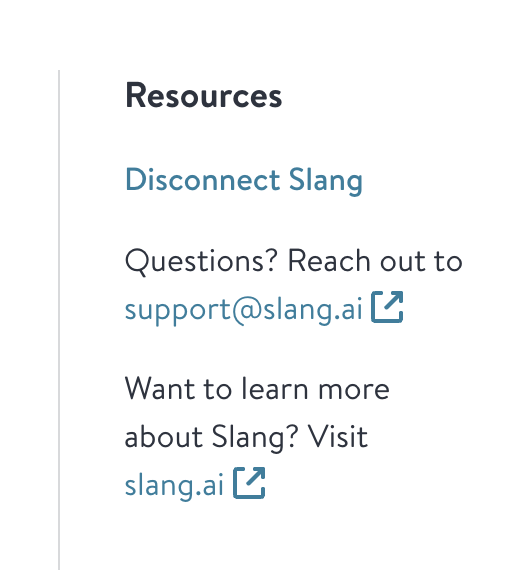
Select Slang, and then click on Disconnect Slang on the right side under "Resources"