Getting Started: Slang + Tripleseat Integration
Last updated: September 16, 2026
Introduction
Slang’s integration with Tripleseat allows your AI concierge to add leads directly to Tripleseat. Superhost is compatible with the Tripleseat integration.
How does it work?
When you turn on the Slang + Tripleseat integration (see below for instructions), your AI host is instantly able to:
Gather info for private events: Callers who ask about private events get information about your restaurant’s policies, and the concierge asks a series of questions to gather contact and event info.
Text callers a confirmation: After the info is gathered, callers see a confirmation that their information was passed on to your team
Generate lead in Tripleseat: Automatically populate your Tripleseat account with these leads
Connecting your Slang Concierge to Tripleseat
Log into the Slang dashboard at ilove.slang.ai
Navigate to Slang’s Marketplace page.
On the Tripleseat tile, click Connect. (Note: If your Tripleseat tile is grayed out, you’ll need to contact your Slang account manager to get it added to your account.)
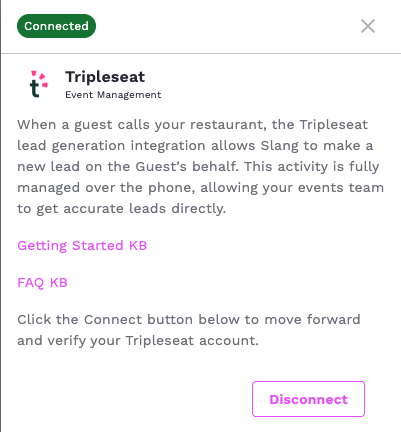
This opens up a drawer on the right; click Connect to be redirected to the Tripleseat Authentication page. (This action takes you outside of the Slang dashboard.)
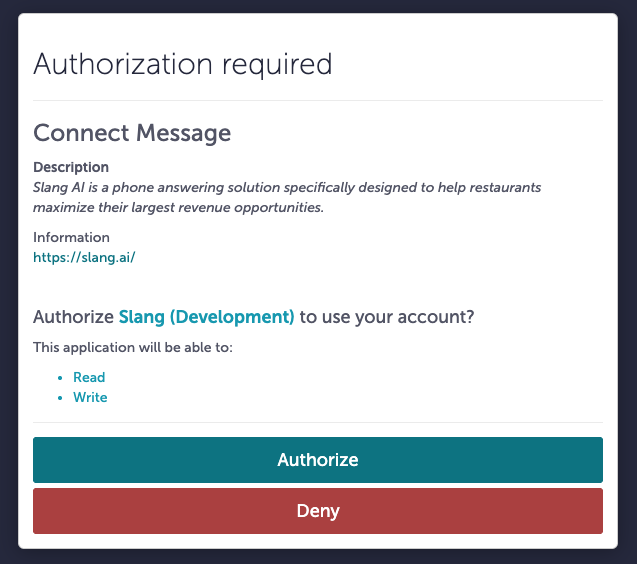
Choose Authorize.
Note: Ensure that you use the same email address to log into both accounts. Your Tripleseat account must have Customer Admin user permission.
If the Tripleseat user's permissions ever change, the integration will be disconnected.
Return to ilove.slang.ai. When your Tripleseat account is successfully linked, the Tripleseat tile looks like this:
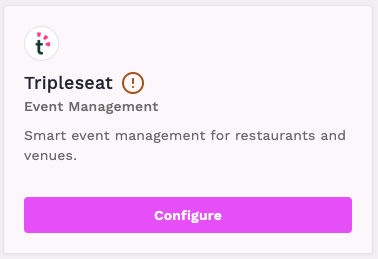
Click Configure on the tile. This action re-opens the drawer, now updated.
In the drawer, select the correct venue and click Confirm. (Your Tripleseat account may only have one.)
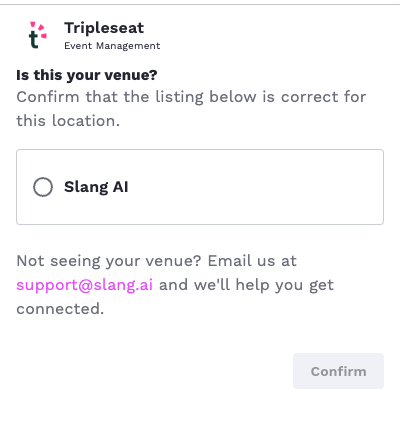
Your Tripleseat account is connected! Next up: Configure your Party Size Routing settings.
Setting up your Private Events topic for Tripleseat
In your Reservations page, open Party Size Routing.
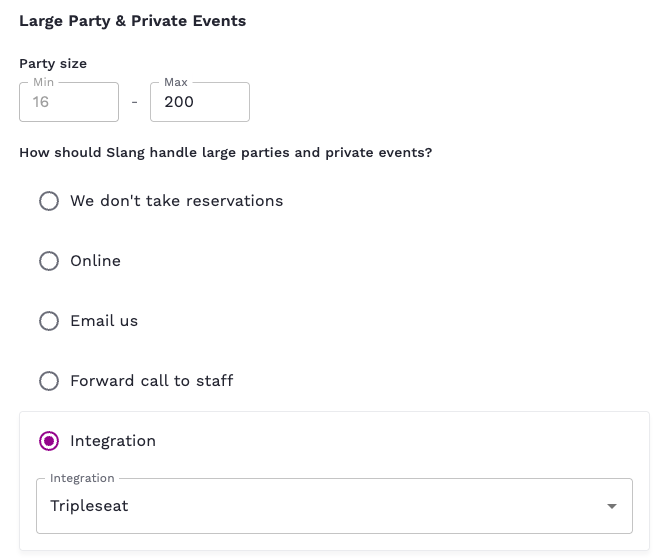
Decide the range of party sizes for Large Parties and/or Private Events at your venue, and select the Tripleseat integration for the appropriate category.
Let us know how callers needing direct help from your events team should be escalated:
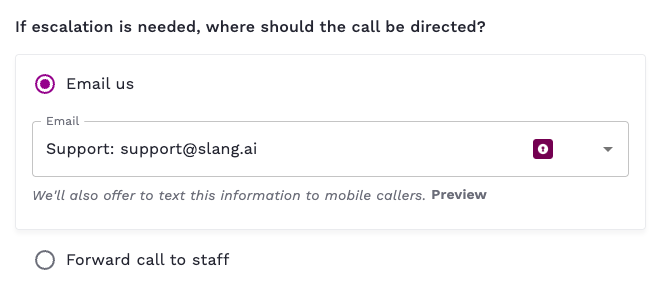
Email us: Guests will be told that the best way to contact is email, and texted an email address.
Forward call to staff: Call will be forwarded to this number.
Select if you’d like Slang to answer 24/7, or if you’d like to set up a schedule for calls goes to a member of the events team.
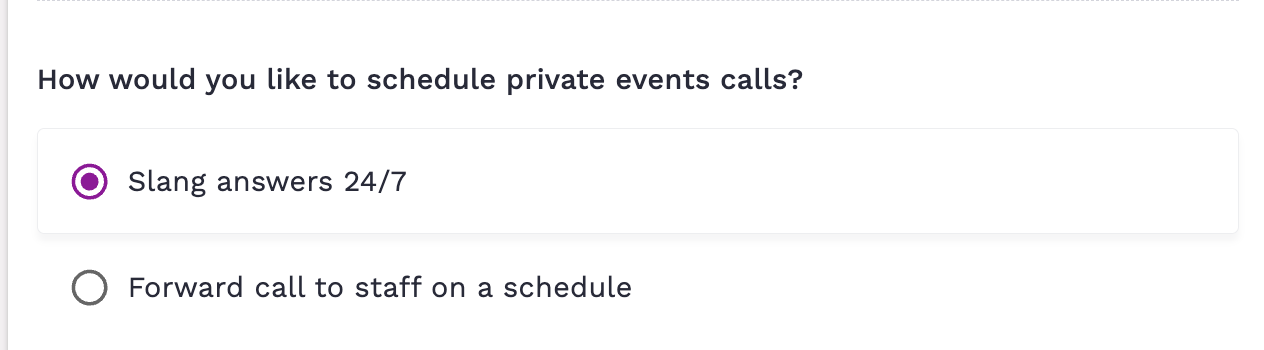
Slang answers 24/7: every private events call goes through our Tripleseat lead collection call flow.
Forward call to staff on a schedule: lets you add a phone number and set the hours you’d like calls to ring through to that number. When it’s outside the scheduled hours, Slang will handle lead submission.
Optional: In the open text field, add a description about your restaurant’s events policies.
Let us know if same-day requests should go directly to the venue’s phone.
Hit Save, and that’s it! Your concierge is able to gather leads and send them to Tripleseat.
Setting up your Conversation Alerts for Tripleseat
In your Slang dashboard, go to Settings → Conversation Alerts. Use Incomplete Lead instead of Private Dining Request — it only fires when Slang didn't already create a record in Tripleseat, so you won't receive duplicate notifications for conversations that were already captured.
See more information on our premium feature Conversation Alerts. Reach out to your account manager and/or suport@slang.ai to upgrade.
How do I turn it off?
Log into the Slang dashboard at ilove.slang.ai
Before you Disconnect Tripleseat, remember to go to the Reservations page and select how you’d like Private Events calls to be handled without the integration.
Navigate to Slang’s Marketplace page.
On the Tripleseat tile, click Manage.
This opens up a drawer on the right; click Disconnect.