Intelligent Menu
Last updated: August 29, 2026
What’s the Intelligent Menu Feature?
Intelligent Menu lets your Slang concierge answer callers' questions about your food, drinks, ingredients, pricing, specials, and more using information pulled directly from your actual menu.
Instead of giving vague answers or directing callers to a website, your concierge reads your uploaded menu and generates a natural, helpful response in real time.
For example, callers might ask:
“What’s on your dinner menu?”
“Do you have gluten-free options on the menu?”
Slang will generate a real answer based on your menu, not a generic response.
How Does It Work?
When you upload your menu, Slang converts it into a format our AI can read.
Whenever a caller asks a menu-related question, Slang’s AI:
References your uploaded menu
Finds the relevant information
Generates a short, accurate response on the spot
The system can answer questions about:
Specific dishes and ingredients
Pricing
Dietary accommodations and allergies
Specials and happy hour
Brunch, dessert, and drink menus
Wine, beer, and cocktail options
Responses are typically 1–3 sentences, so answers sound natural and conversational, not robotic.
The Menu and Price Description topic has moved to the Menu Management tab and is now called General Menu Overview.
If both Intelligent Menu and General Menu Overview are enabled, Slang combines:
Your general menu description
Your uploaded menu
This creates more contextual and helpful responses for callers.
⚠ Important (Beta Behavior)
During the beta, callers get the best results when they mention the word “menu” in their question.
Example:
✅ “What appetizers are on your menu?”
❌ “What do you you have for brunch?”
We’re actively improving this so all food-related questions are handled automatically, regardless of wording.
How to Set Up Intelligent Menu
Log in to your Slang dashboard at https://ilove.slang.ai
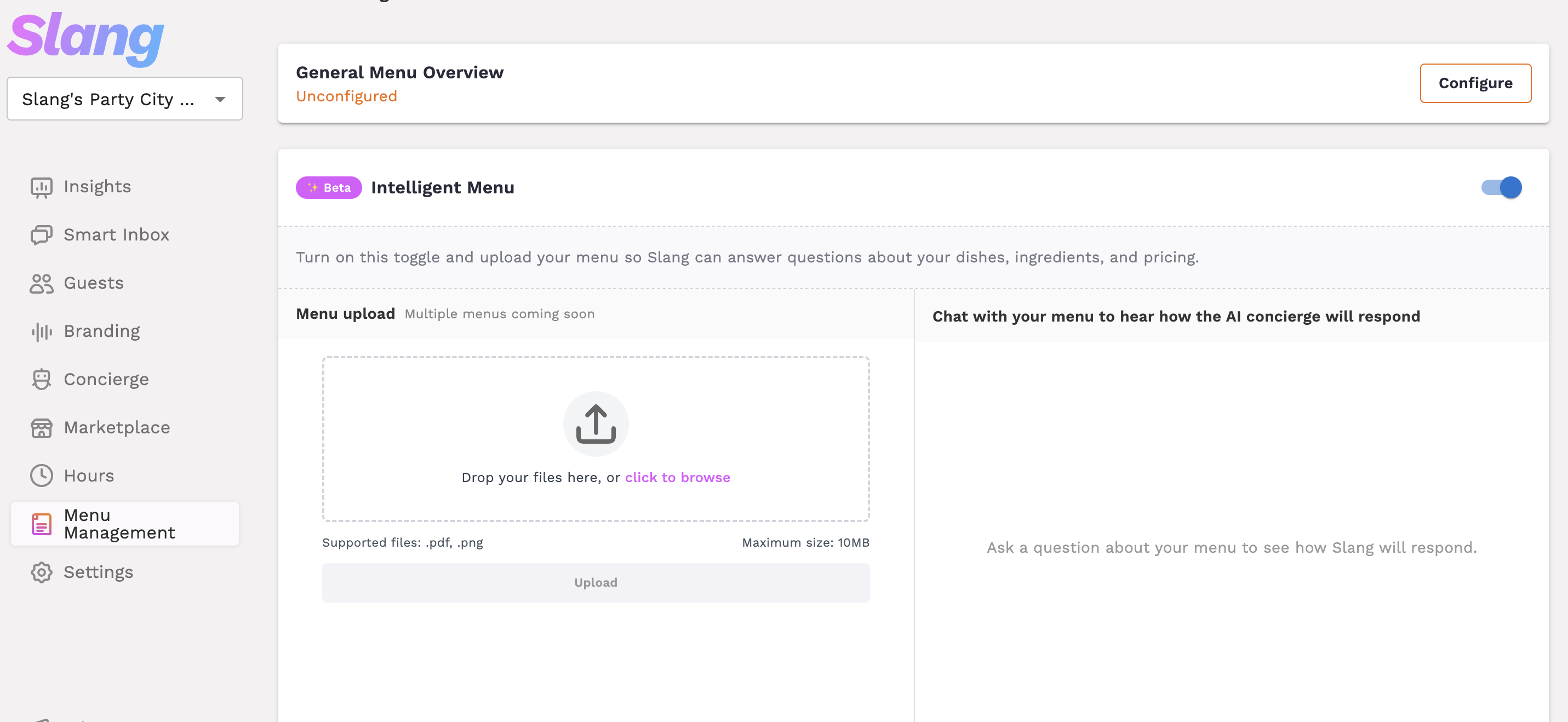
Click Menu Management in the left side navigation bar.
Turn on the Intelligent Menu toggle at the top right corner of the page.
Upload your menu file
Click the upload area or drag and drop
Supported formats: PDF, PNG
Maximum file size: 20 MB
Wait for Slang to process the file.
You’ll see a success message when processing is complete
Once finished, your concierge will begin using your menu to answer caller questions.
Getting the Most Out of Intelligent Menu
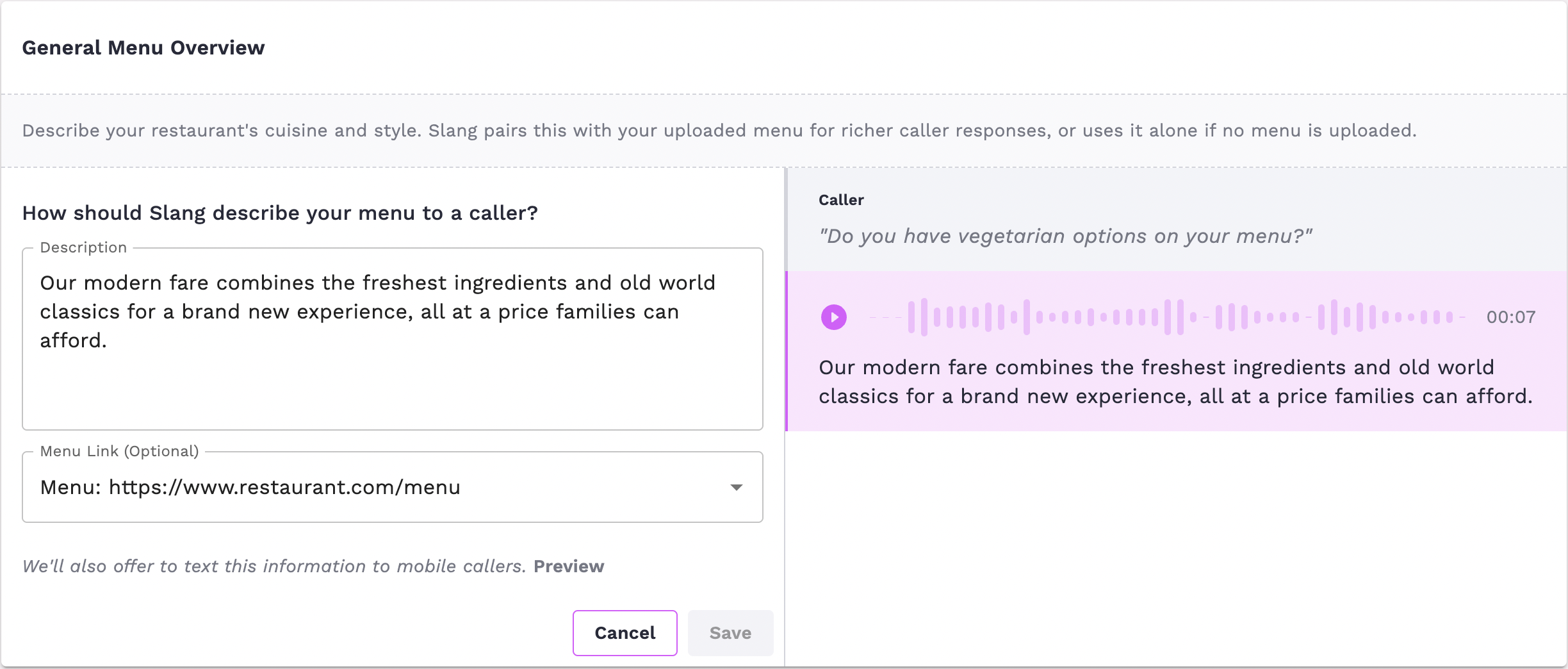
For the best caller experience, make sure General Menu Overview is also configured.
This feature provides a high-level description of your restaurant’s cuisine and style, which Slang combines with your uploaded menu to generate richer, more contextual answers.
Replacing Your Menu
If your menu changes, you can upload a new version anytime.
Go to Menu Management
Click Replace next to your current menu file
Upload the updated file
How Will I Know It’s Working?
You can test Intelligent Menu in two ways.
From the Dashboard
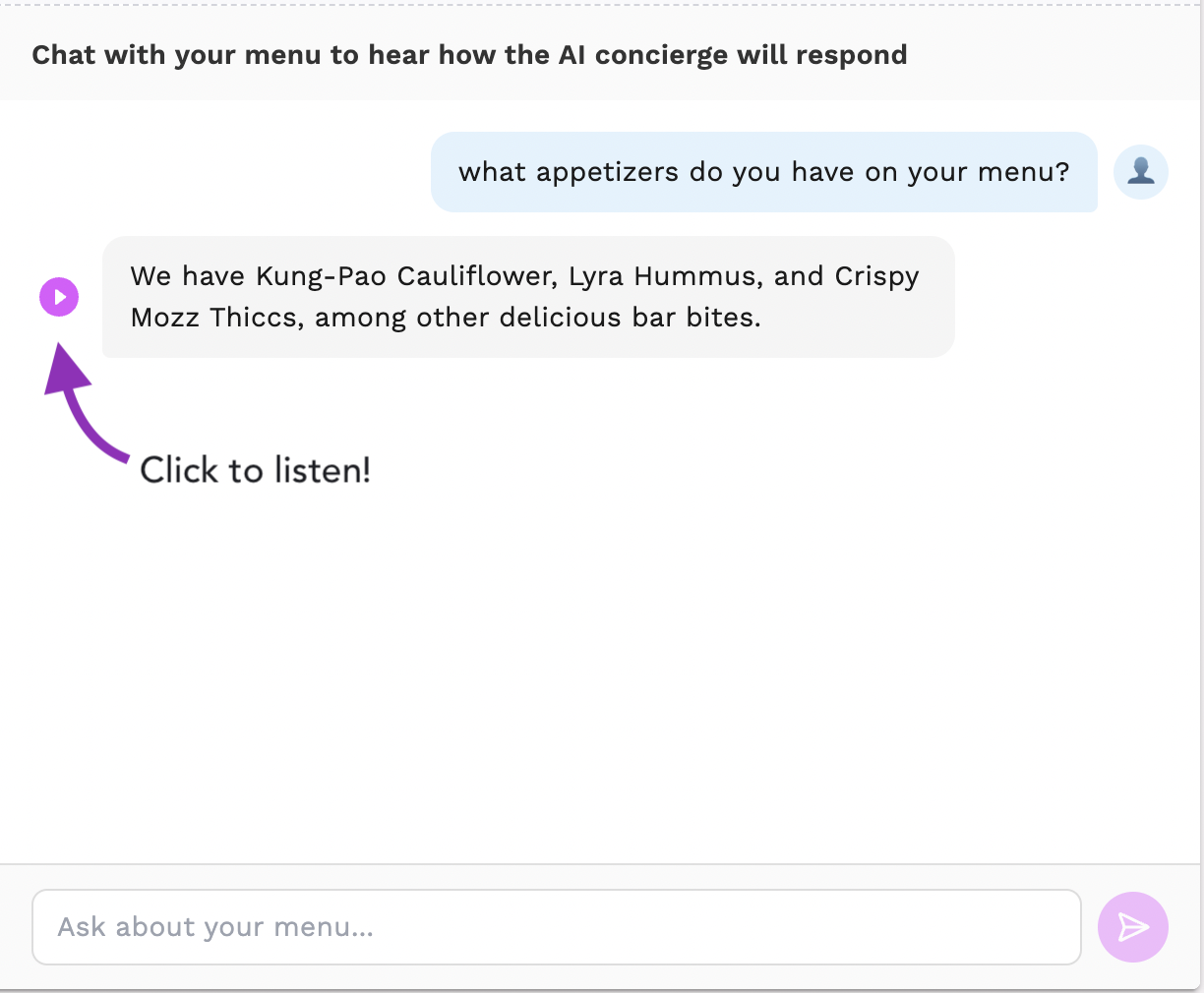
On the Menu Management page, you’ll see a chat panel on the right side.
Try asking questions like:
“What’s on your lunch menu?”
“Do you have vegan options on the menu?”
You can also click the pink play button to hear how it sounds.
By Calling In
Call your Slang phone number and ask a menu question.
During the beta, remember to include the word “menu.”
Example:
“Can you tell me about your dinner menu?”
Frequently Asked Questions
Why does my caller need to mention “menu”?
During the beta, Intelligent Menu responds to questions that specifically reference the menu.
Example:
“What’s on your brunch menu?” → AI response
“Do you serve brunch?” → Standard topic response
We’re actively improving this so all food-related questions automatically trigger Intelligent Menu.
Where did my Menu topic go?
The Menu and Price Description topic is now called General Menu Overview and lives on the Menu Management page.
It works exactly the same as before, and when combined with Intelligent Menu it improves the quality of responses.
Can I upload more than one menu?
Not yet.
Currently, you can upload one menu file at a time.
Support for multiple menus (such as separate lunch and dinner menus) is coming soon.
What if I don’t upload a menu?
Your concierge will continue handling menu questions the same way it did previously, using your existing topic responses.
Intelligent Menu only activates when:
A menu file is uploaded.
The Intelligent Menu toggle is turned on.
Does it work with image menus?
Yes.
You can upload:
PDF menus
PNG image menus
This works well if your menu is a photo or designed graphic rather than a text document.
How accurate are the answers?
Slang’s AI reads your menu directly from the uploaded file, so responses are based on exactly what appears in your menu.
For best results:
Upload a current, complete menu
Re-upload the file whenever your menu changes
What types of questions can it answer?
Anything related to your menu, including:
Menu items
Prices
Ingredients
Dietary options (gluten-free, vegan, etc.)
Specials and happy hour
Brunch menus
Drink menus
Wine lists
Desserts
Is it available on Superhost?
Intelligent menu is not available on Superhost.
Need More Help?
If you have questions, contact us at:
Our team will get back to you shortly.