Reservation Search Window
Last updated: July 24, 2026
When a guest calls to book a table, they usually have a specific time in mind. If that exact time isn’t available, Slang will search for openings nearby — but how far should it look? The Reservation Search Window lets you control that range, so your Slang Concierge surfaces alternatives that are actually convenient for your guests rather than times that are hours away from what they asked for.
How does it work?
The Reservation Search Window is available for any Slang Concierge connected to a booking integration. You can configure it from the Reservations section of your Settings page at ilove.slang.ai.
The setting uses a slider with six increments: 30m, 1h, 1.5h, 2h, 2.5h, and 3h. The window applies both before and after the time your guest requests — so a 30-minute window means Slang will search up to 30 minutes earlier and 30 minutes later than the requested time. The default is 3 hours.
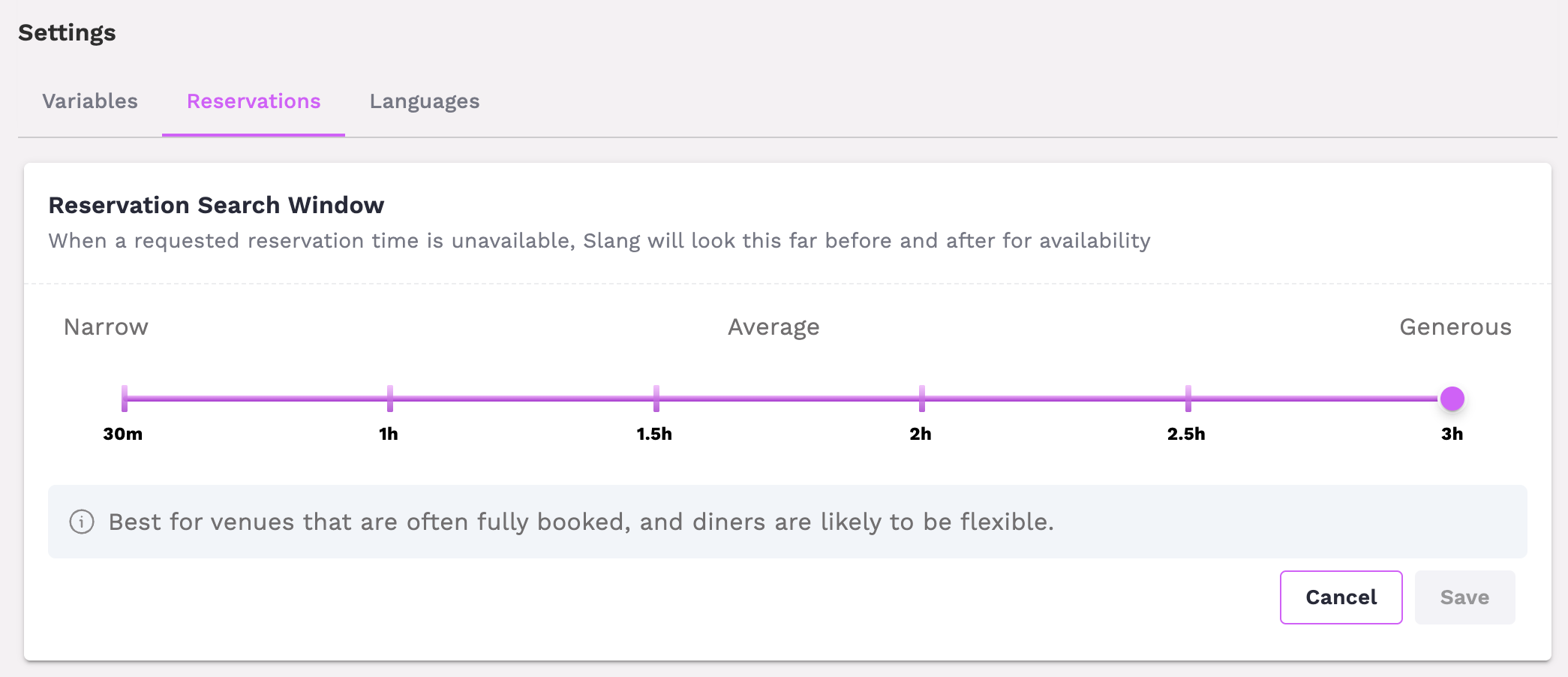
Choosing a shorter window is a good fit for venues where reservations are tied to events or showtimes, and guests are less likely to be flexible. A wider window works best for restaurants that are frequently fully booked, where guests are more open to an alternative time.
What’s the guest experience?
When a caller requests a time that has no availability within your configured window, Slang lets them know clearly. If your restaurant has Cross-Sell enabled and there’s a matching opening at a partner location, Slang will follow up with that offer automatically.
“Unfortunately, we don’t have any tables available within [selected search window] before or after 7:00 PM. I do have a reservation open for the exact same date, time, and party size at our partner restaurant, [Location B name].”
If Cross-Sell isn’t enabled, Slang will deliver the no-availability message without the partner offer, and will ask if the caller would like a text with your booking link to peruse outside of the phone call or speak to a human.
How do I set it up?
Log in to your Slang dashboard at ilove.slang.ai.
Navigate to Settings and scroll to the Reservations section.
Locate the Reservation Search Window setting.
Use the slider to select your preferred search range, from 30 minutes to 3 hours.
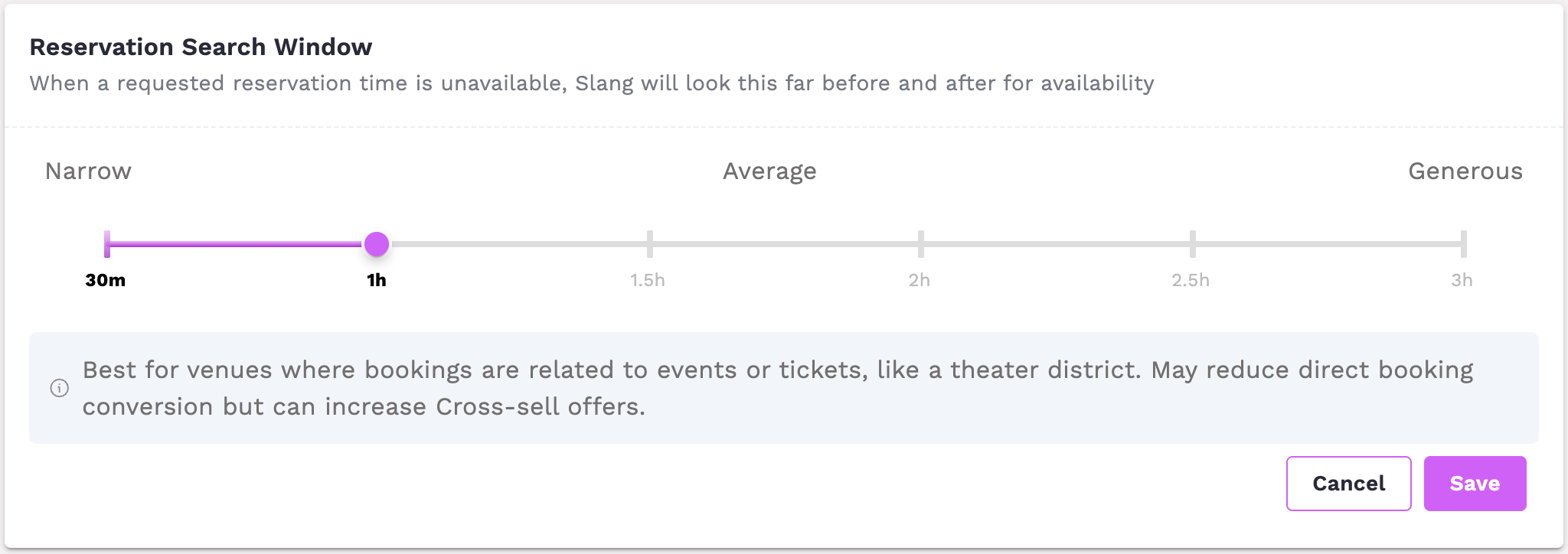
Click Save.
How will I know it’s working?
Once configured, Slang will apply your search window on every reservation call. If a guest requests a time with no availability within your set range, Slang will respond with a no-availability message rather than offering times that fall outside of it. You can test this by calling your restaurant line and requesting a time you know is unavailable.
Interested in this feature?
Reservation Search Window is available on the Core and Premium tiers for any restaurant with a booking integration connected. Reach out to your account manager to learn more.