Reservations / Party Size Routing
Last updated: September 2, 2026
Introduction
Party Size Routing tells your Slang concierge how to handle reservations for different party size ranges. You can give your concierge rules to guide callers to the right booking experience for small groups, large parties, and private events.
Whether you want to send large party requests directly to a staff member, route private events to a dedicated form, or connect different party sizes to different booking integrations, Party Size Routing supports your business logic.
Party Size Routing is the new standard for all billing tiers, and can be edited by users with the Owner or Administrator role.
How Does It Work?
Party Size Routing organizes your incoming reservation calls into groups based on the size of the party. Each group can be configured with its own booking method: directing callers online or to email, forwarding to a staff member, or a supported integration like OpenTable or Tripleseat.
You define the size thresholds, and the concierge automatically routes each caller to the appropriate booking experience.
You create up to 3 “booking groups.”
Regular Reservations: Typical reservations that cover most party sizes you would seat at a regular table, with a fixed minimum of 1.
Large Parties: These are reservations you can fit into your regular dining room, but might require special handling.
Private Events: These are the largest reservations that would require special handling by your team, or dedicated spaces in your facility.
You can combine Large Parties and Private Events, if your business would book and seat these in the same way.
How Do I Set It Up?
Go to the left-navigation tab called Reservations.
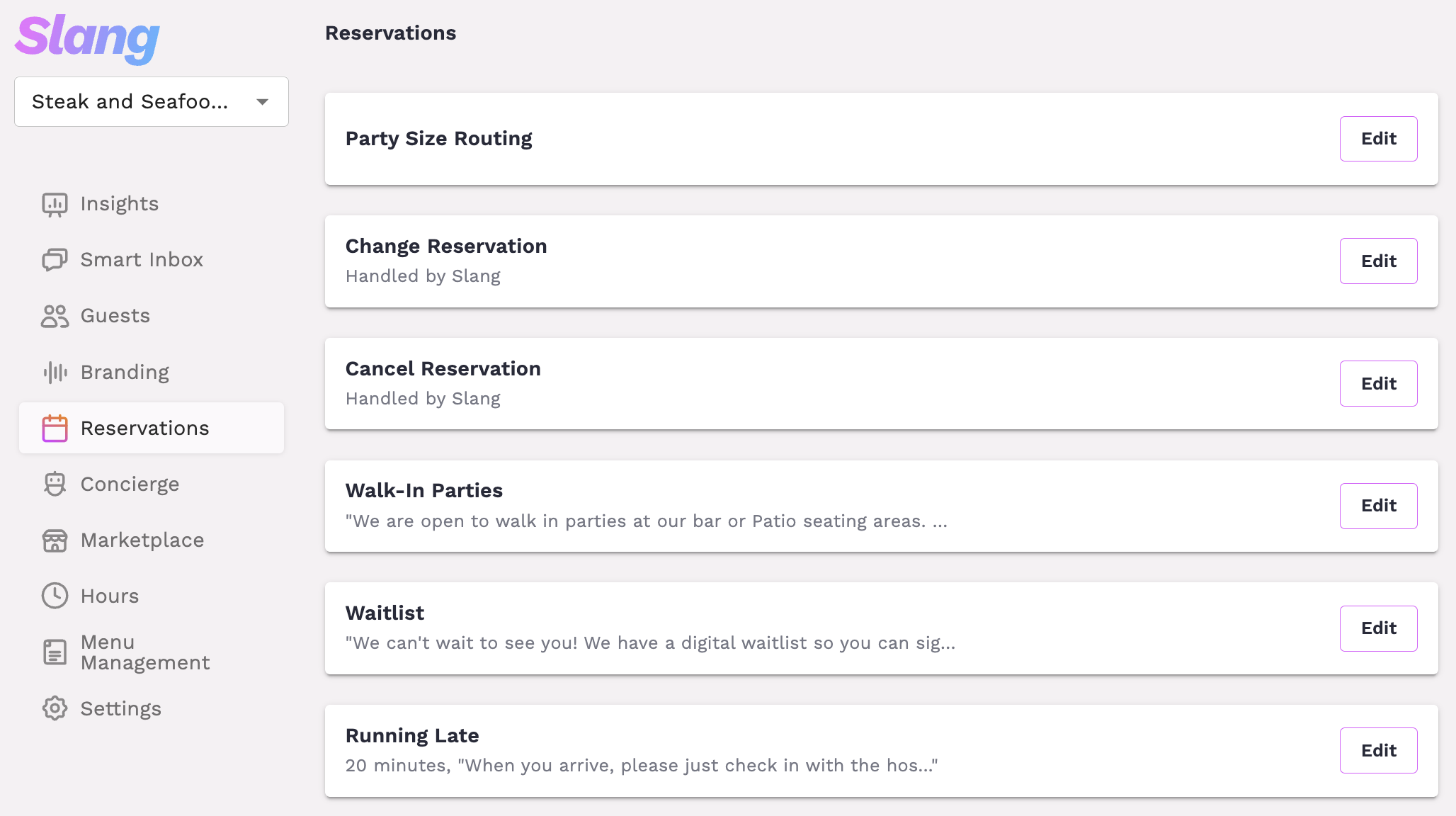
For the top section called Party Size Routing, click Edit.
Configure Regular Reservations by adding the max party size that you consider a “standard” reservation, and select how you want these reservations booked.
For example, a typical configuration for this group is OpenTable, so to configure this, select OpenTable from the drop-down menu.
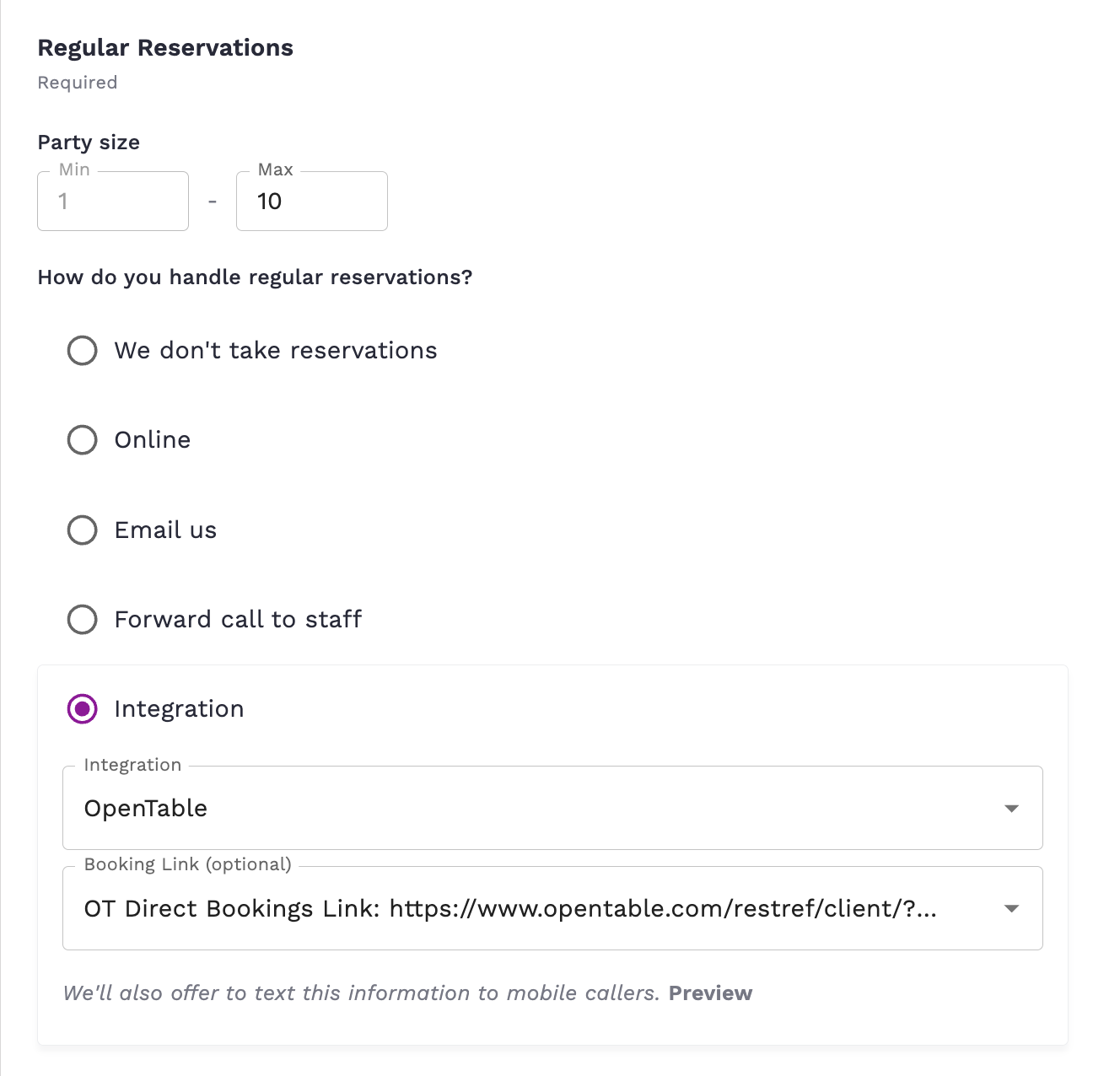
Repeat the steps for the Large Parties and Private Events topics by filling out the max party size, and choosing your configuration for how to book those groups.
If you handle Large Parties and Private Events the same way, and if you consider these to be the same party size range, you can combine them. (In other words, if you don’t need three booking groups, you can reduce to two.)
Click the text called Combine Large Parties and Private Events.
Additional details on configuring Tripleseat are here.
Configure Same-Day Escalation.
a) If you’d like for same-day large parties and private events to be forwarded directly to staff, select yes and choose the forwarding phone number.
b) If you’d like those calls to be handled according to your standard configuration, choose no.
Tips:
The dashboard requires that you fully configure your groups before the Save button is enabled.
Party size ranges should be set from smallest to largest.
Party size ranges must be discrete; there can be no overlap between groups. For example, if Regular Reservations covers groups of 1–8, then Large Parties must begin at 9. The system auto-populates the minimum numbers. If there is a conflict between your configured ranges, you will be prompted to resolve it before saving.
How Do I Know It’s Working?
After saving your Party Size Routing configuration, here are a few ways to confirm it is working as expected:
Place a test call to your concierge number and try asking for reservations of different party sizes. Verify that each group size is routed to the correct booking method or staff member.
If a group is routed to an integration like Tripleseat, confirm that reservations made through the concierge are appearing in your integration as expected.
Check your Slang.ai dashboard for recent call activity. Look for reservation-related calls and confirm that the routing behavior matches your configuration.
If you enabled same-day escalation, test by requesting a same-day reservation for a larger party size and confirm the call is forwarded to the correct number.
If something does not seem to be routing correctly, double-check that your party size ranges are saved correctly and that there are no overlapping ranges in your configuration.
Frequently Asked Questions
Why is an integration not listed or grayed out?
For an integration to be usable in Party Size Routing, it needs to be connected via the Marketplace. If you don’t see it available, or grayed out, in the dropdown, check your Marketplace settings.
Who can edit Party Size Routing settings?
Only users with the Owner or Administrator role can view and edit Party Size Routing settings. If you don’t see the option in your dashboard, check with your account owner to confirm your role.
What happens if a caller doesn’t specify a party size?
The concierge will prompt the caller for their party size before routing them. The concierge needs this information to determine which group the caller falls into.
What is same-day escalation and when should I use it?
Same-day escalation is an option that forwards calls to a staff member when a caller requests a reservation for the current day and their party falls into a larger size group. This is useful for restaurants that prefer to handle last-minute large-party requests personally rather than through an automated flow.