User Permissions
Last updated: August 28, 2026
Manage Your Team Effectively with User Permissions
What are User Permissions?
User Permissions allow you to control the level of access each team member has within the Slang platform. This feature enables you to assign specific roles to your users, ensuring that individuals only have access to the information and functionalities relevant to their responsibilities. This helps maintain security and streamlines workflows for your team.
Why are User Permissions Important?
Implementing User Permissions offers several key benefits:
Enhanced Security: By granting access only where it's needed, you reduce the risk of accidental changes or unauthorized access to sensitive company data, configurations, and billing information.
Improved Workflow Efficiency: Users can focus on their specific tasks without being overwhelmed by irrelevant options or data, leading to a more streamlined experience.
Better Team Management: Clearly defined roles and access levels make it easier to manage your team's engagement with the Slang platform, especially for larger or multi-location businesses.
Alignment with Industry Standards: This feature brings the Slang platform in line with common SaaS practices, offering a familiar and expected level of control for businesses managing multiple users.
Understanding User Roles and Access Levels
The User Permissions feature introduces several distinct roles, each with specific capabilities. Access can be defined at a Company Level (applying to all locations within your account) or at the Location Level (specific to individual venues).
Here's a breakdown of the available roles:
Company Owner:
Access: Full access to all features, settings, and data across all locations within the account, automatically including any new locations added.
Capabilities: Can manage all aspects of the platform, including billing, integrations, and user management. They can assign or change any user role, including appointing other Company Owners.
Administrator (Company Level or Location Level):
Access: Can view Insights, manage Smart Inbox, has full edit access to platform configurations (like Concierge, Settings, Hours), and can manage Integrations and Users.
Assignment: Assigned by a Company Owner or another Administrator.
Scope: An Administrator can have access to all current and future locations, or only specific, individual locations.
Content Manager (Company Level or Location Level):
Access: Can view Insights, manage Smart Inbox, and has edit access for Concierge content, Settings, and Hours. They have access to the Marketplace and can view User Assignments.
Assignment: Assigned by a Company Owner or an Administrator.
Scope: Company Owner or Administrators determine if a Content Manager has access to all current and future locations, or only specific, individual locations.
Viewer (Company Level or Location Level):
Access: Can view Insights (including receipt of weekly stats emails), manage Smart Inbox, and has read-only access to Concierge content, Settings, Hours, and User Management.
Assignment: Assigned by a Company Owner or an Administrator.
Scope: Company Owners or Administrators determine if a Viewer has access to all current and future locations, or only specific, individual locations.
How to Manage User Permissions
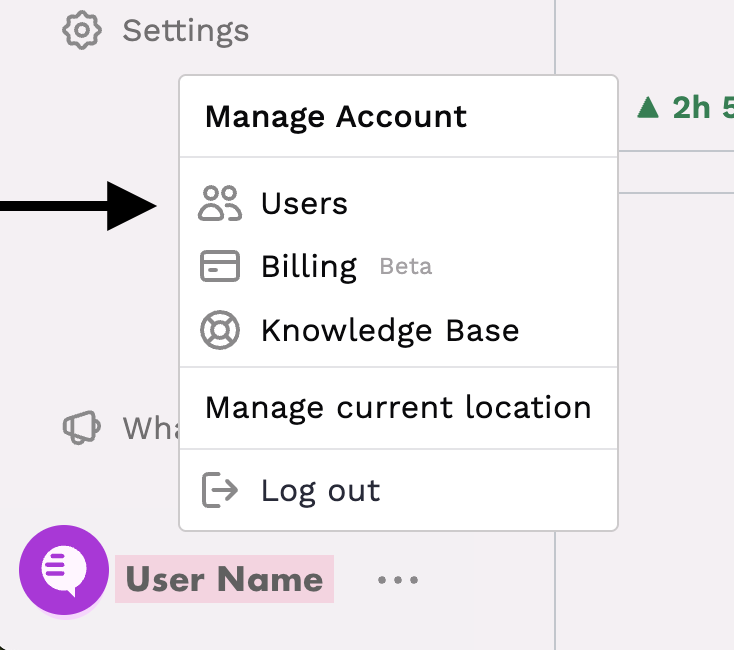
Navigate to the Users section of your Slang dashboard.
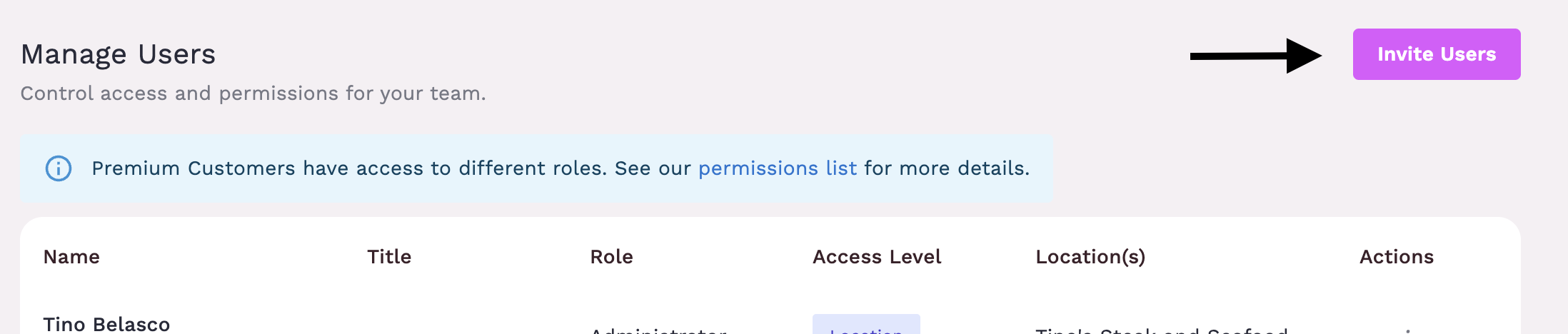
To add a new user, click on an Invite Users.
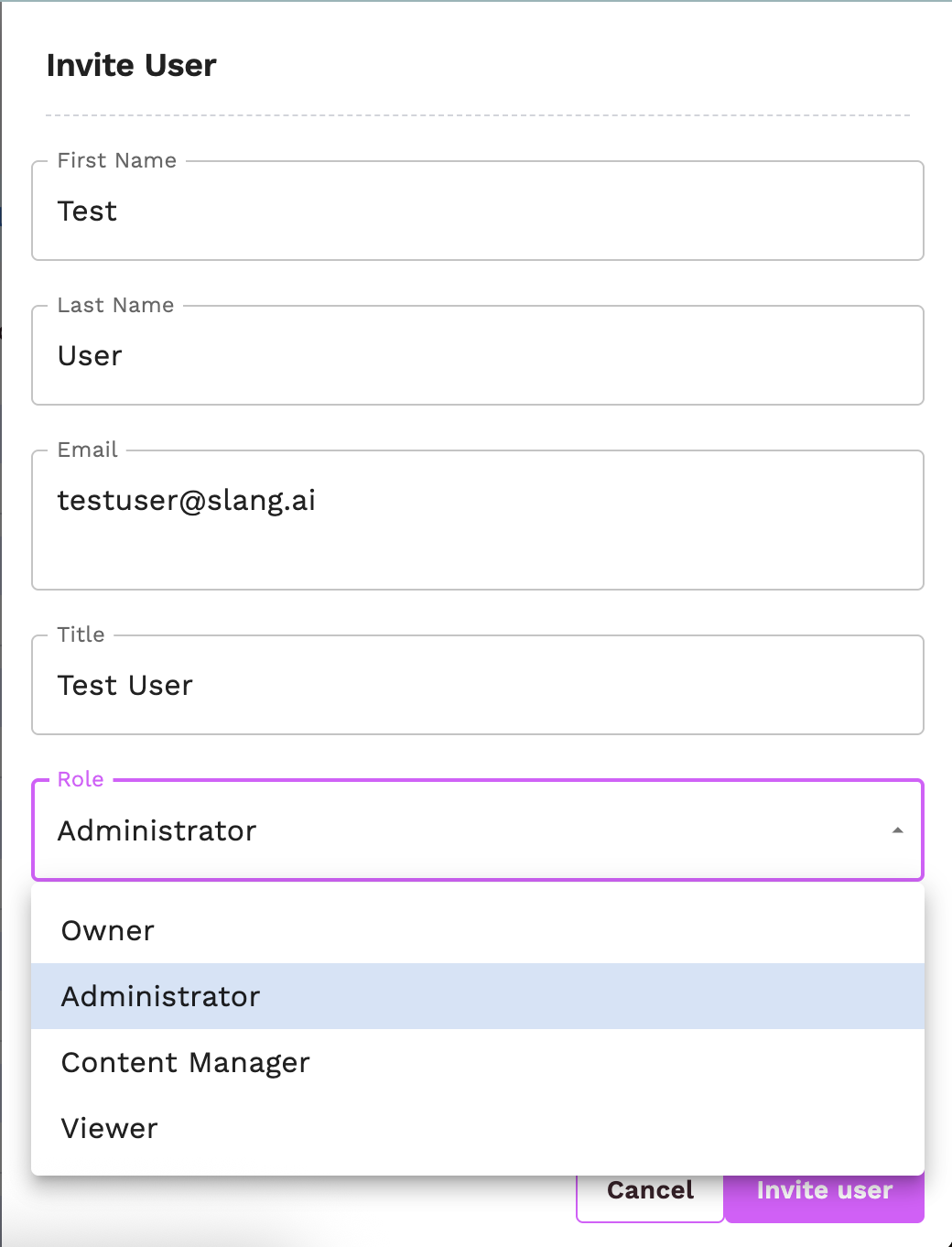
Enter the user's details.
Select the appropriate Access Level (Owner, Administrator, Content Manager, Viewer) from a dropdown menu or selection list.
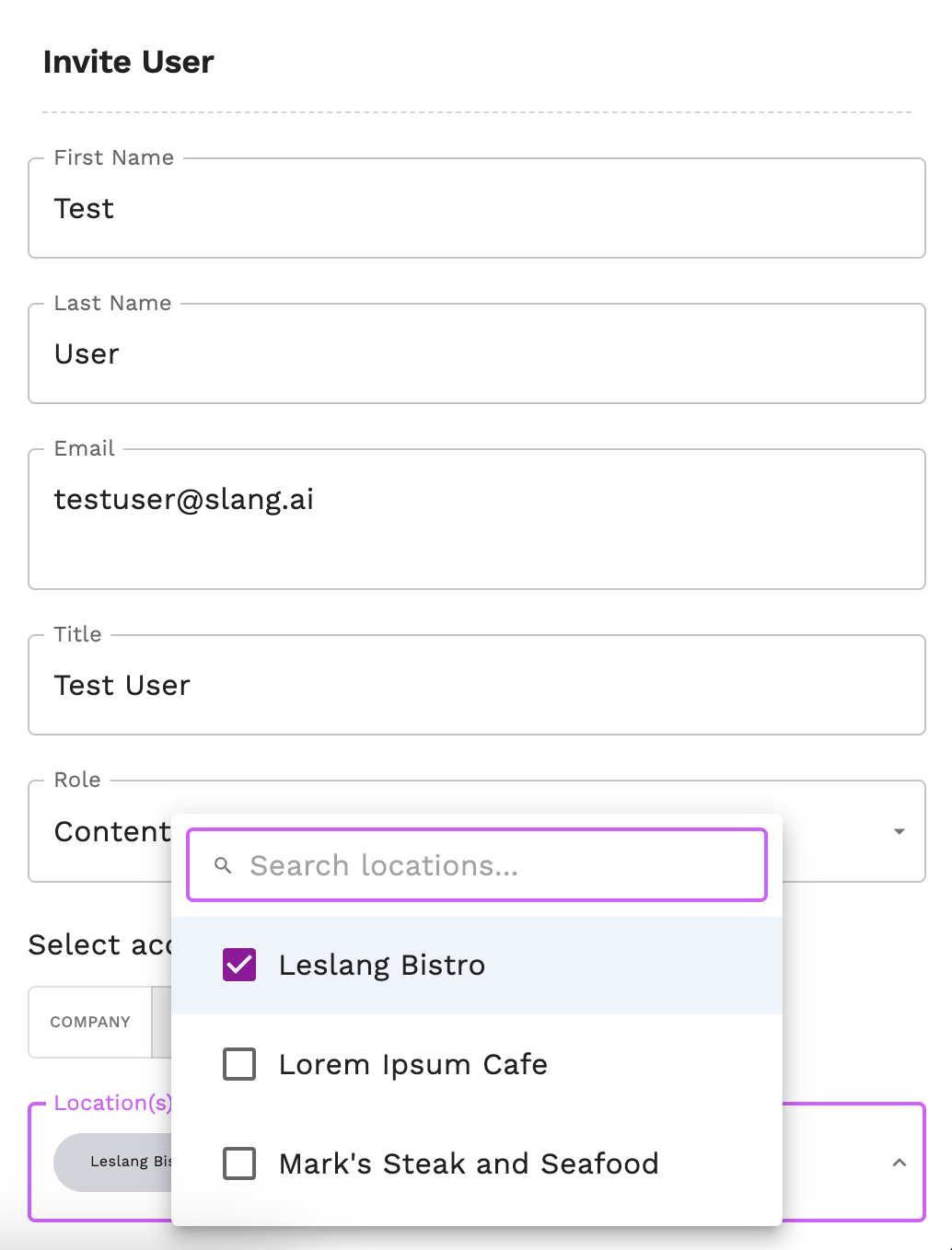
If applicable (for Administrator, Content Manager, Viewer roles), define whether their access applies to all locations (Company Level) or specific locations (Location Level). The location selection appears as a drop-down menu:
Save the new user.
To change an existing user's permissions, locate the user in the list, select Edit, and modify their Access Level and scope as needed.
Important Considerations:
Initial Setup: The first user for a new company will be set up as a Company Owner during your Slang kickoff call with our implementation team.
Strategic Assignment: Carefully consider which roles are appropriate for each team member based on their responsibilities to ensure both operational efficiency and security.
Regular Review: Periodically review user access levels to ensure they are still appropriate as team members' roles change.
Password Security: Users should maintain strong, unique passwords. The platform's current password configuration requires special characters, lowercase and uppercase letters, numbers, and a minimum length of 8 characters. You can increase security by enrolling users in MFA, or Multi-factor Authentication.
After inviting a new user, you can enroll them in MFA by opening the Edit drawer. MFA will require the user to have an app like Authy or Google Authenticator on their mobile device.
This User Permissions feature is designed to provide greater control and flexibility in managing your Slang account and team access. Content Manager and Viewer roles are able to be assigned if you are paying for a Premium Slang account.