Getting Started: Slang + SevenRooms Integration
Last updated: September 2, 2026
Once Slang is integrated to your SevenRooms account, callers will be able to book standard, non-paid reservations directly on a Slang phone call, and receive a text confirmation from SevenRooms, all without your restaurant phones making a sound!
Important: If you're currently using another reservation system integration (such as OpenTable) with Slang, you must disconnect it first before setting up SevenRooms. Slang can only connect to one reservation system at a time, and attempting to add SevenRooms without disconnecting your existing integration will cause the integration to break.
Compatibility note: Slang's SevenRooms integration is compatible with the standard SevenRooms reservation product only. If your venue uses SevenRooms Nightlife, this integration is not supported — the Nightlife product uses event request forms rather than bookable tables, and Slang cannot process availability or complete reservations in this configuration. If you're unsure which product you have, reach out to us at support@slang.ai. Additionally, the SevenRooms integration is not compatible with Superhost.
1. Submit your request to SevenRooms via this link: API Access Request
Follow the guideline below to submit your request to SevenRooms!
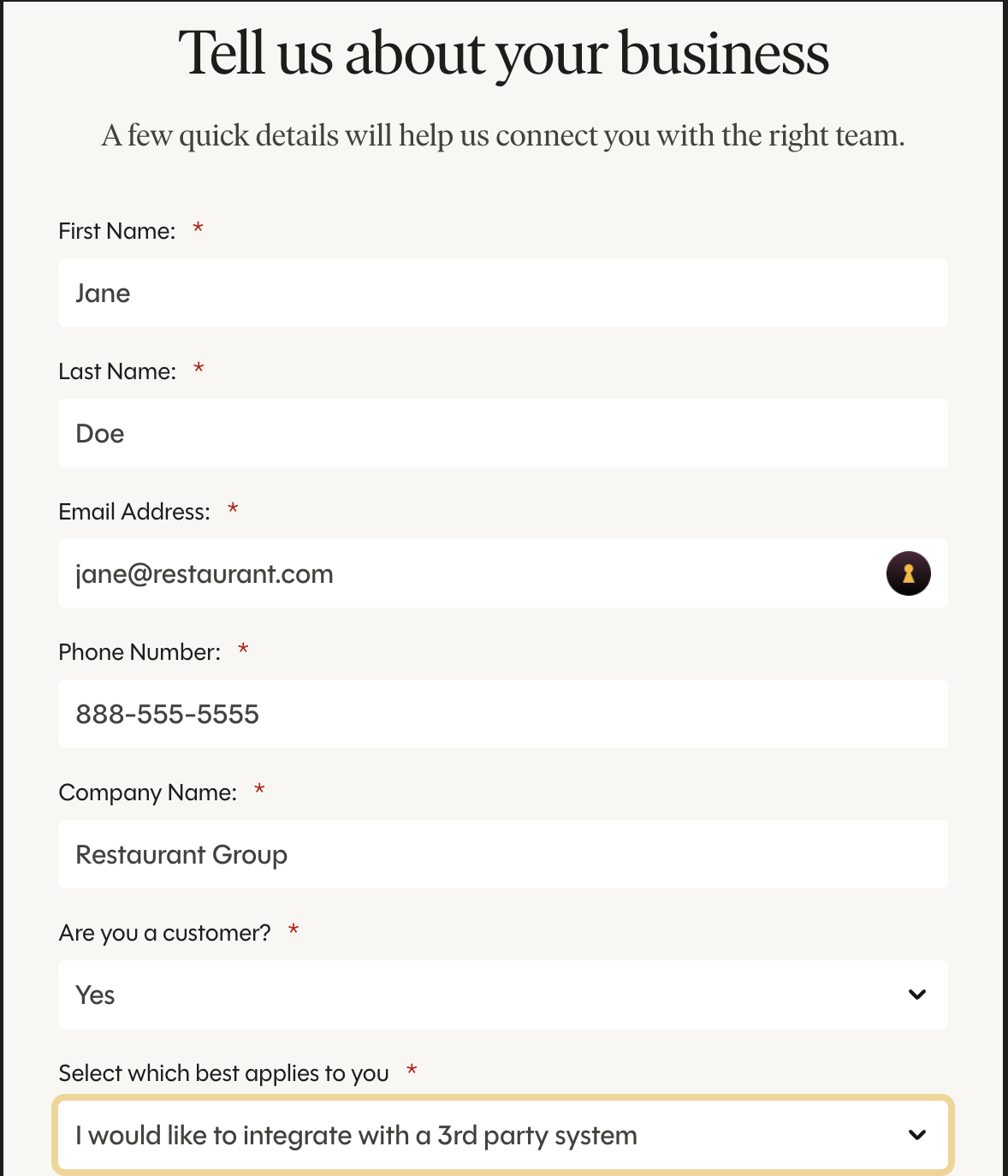
Provide your name, your email address, phone number, and your company name.
When you select “Yes” indicating you are a customer, the rest of the form will reveal itself.
Choose “I would like to integrate with a 3rd party system”
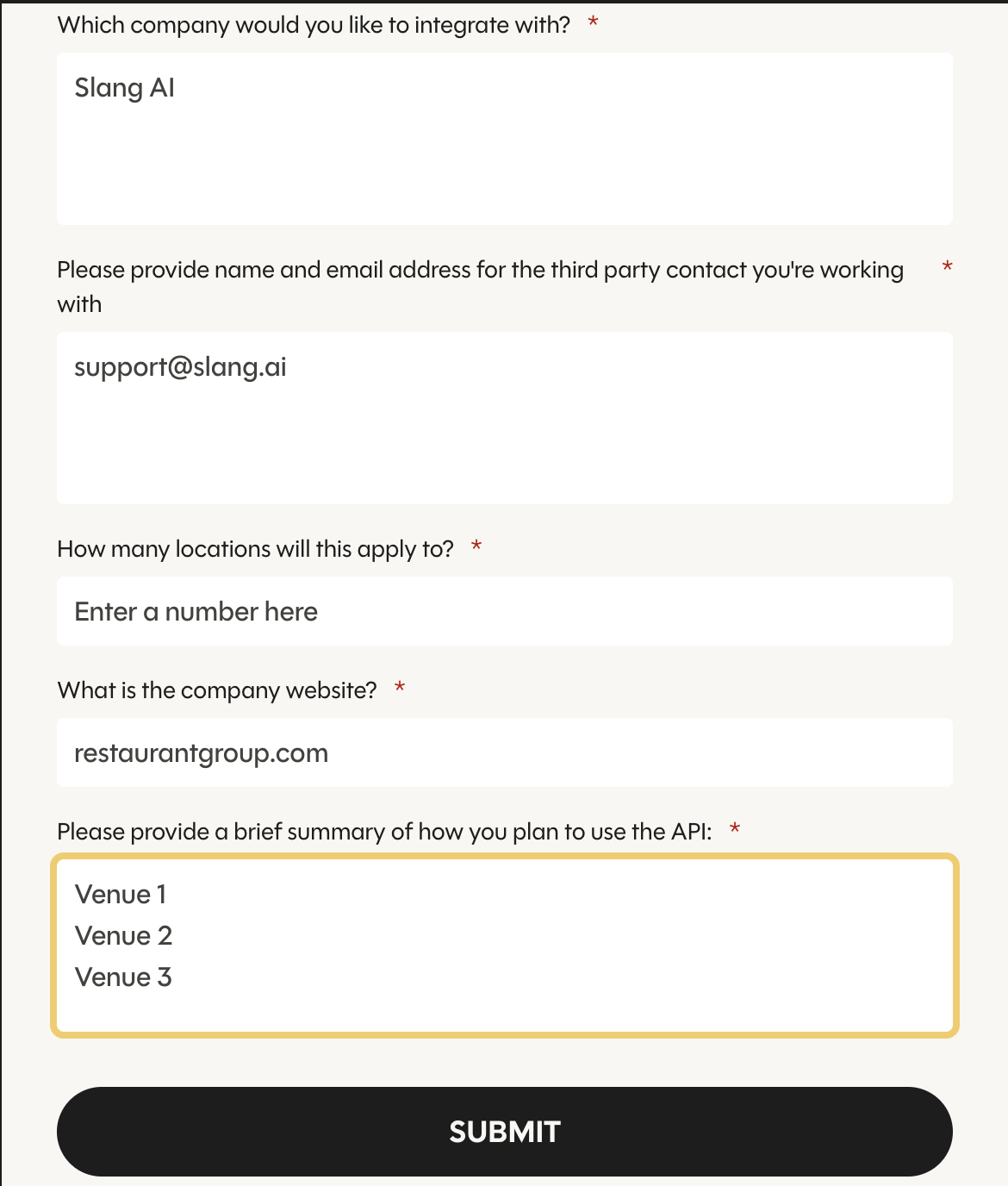
The company you would like to integrate with is Slang AI
You can provide the contact email address support@slang.ai
Supply the number of restaurants that you would like to integrate with Slang, i.e. “4”
The company website supplied here should be you, the customer’s, restaurant website.
In place of the summary of how you plan to use the API, supply SevenRooms with the name of each venue you’d like to enable the integration for, ensuring the number of venues listed matches the number of locations you entered above.
Submit!
In 3-5 business days, SevenRooms will send a secure link via email to the account owner containing the information needed to connect via the Slang Marketplace. This should come from api-integration-support@sevenrooms.com
Don't let the API Key process delay you! While you're waiting, Slang can still answer your calls and offer a booking link to your guests. When we layer on the integration, we can facilitate these non-paid bookings seamlessly by phone.
2. Add the Slang Audience to existing inventory shifts:
By the time API keys are passed to you from SevenRooms, the Slang Audience has been created in your account(s). This is the only availability we can see and book during a phone call.
You’ll need to ensure the Slang Audience is enabled for the access rules that you want diners to be able to book via a Slang call.
The Slang Audience may be automatically enabled depending on your Custom Channel settings. Be sure to check every Access Rule to make sure your settings are correct!
When logged into SevenRooms, click on Settings on the bottom of the left-side navigation bar.
Under Availability, click on Access Rules.
Click directly on an access rule block.
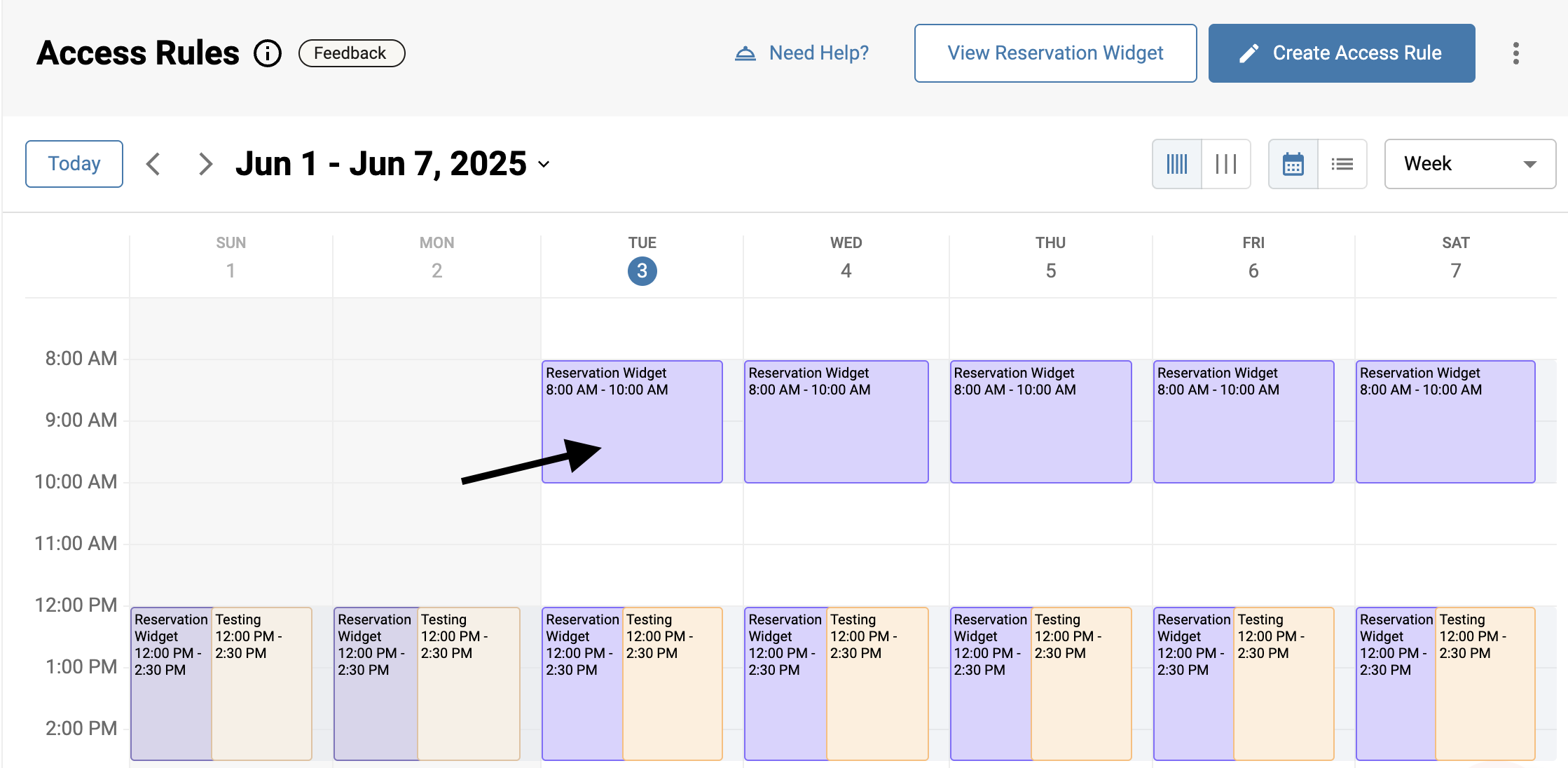
In the drawer click on Edit on the bottom right.
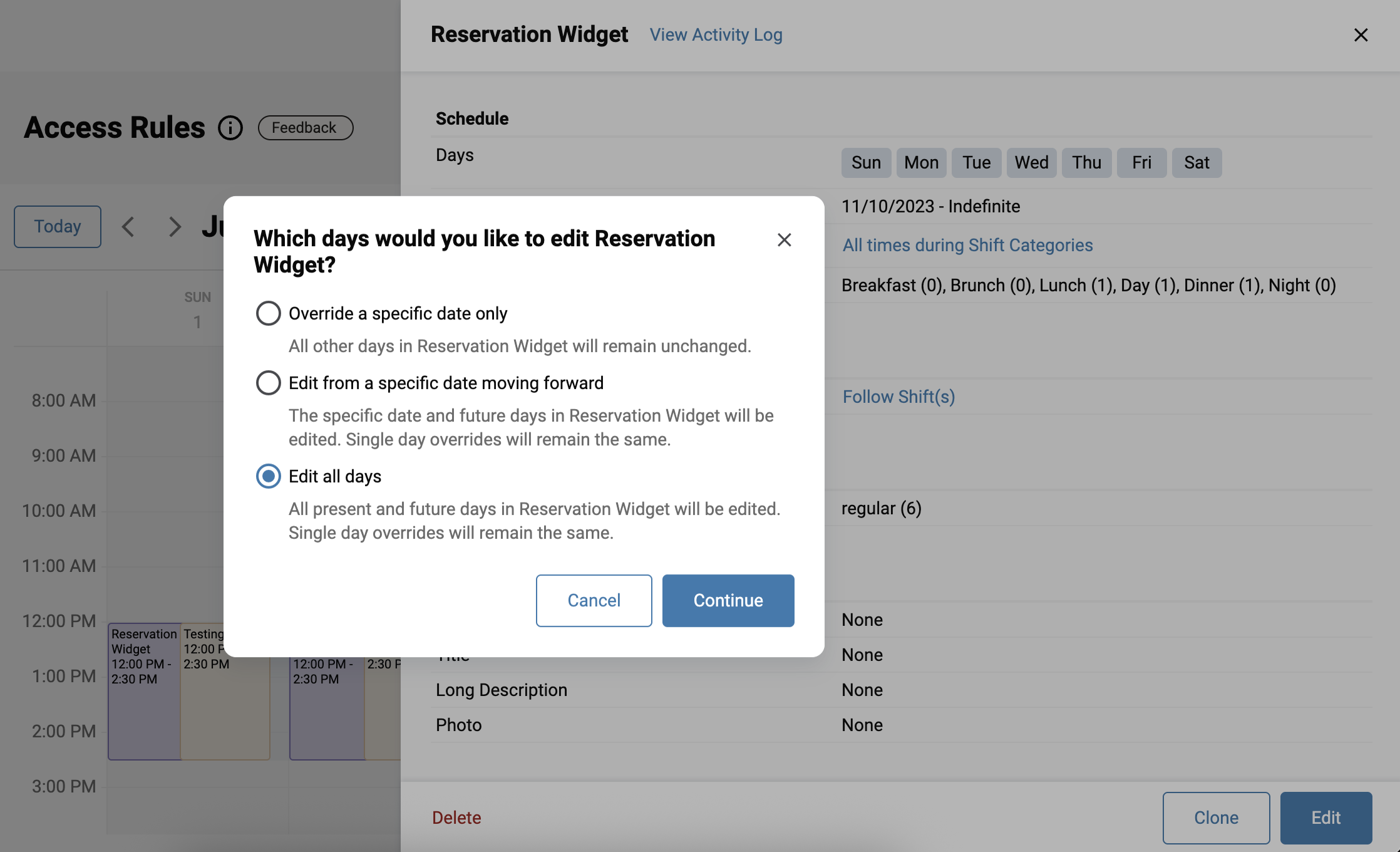
In the modal that pops up, select “Edit all days” and click on Continue.
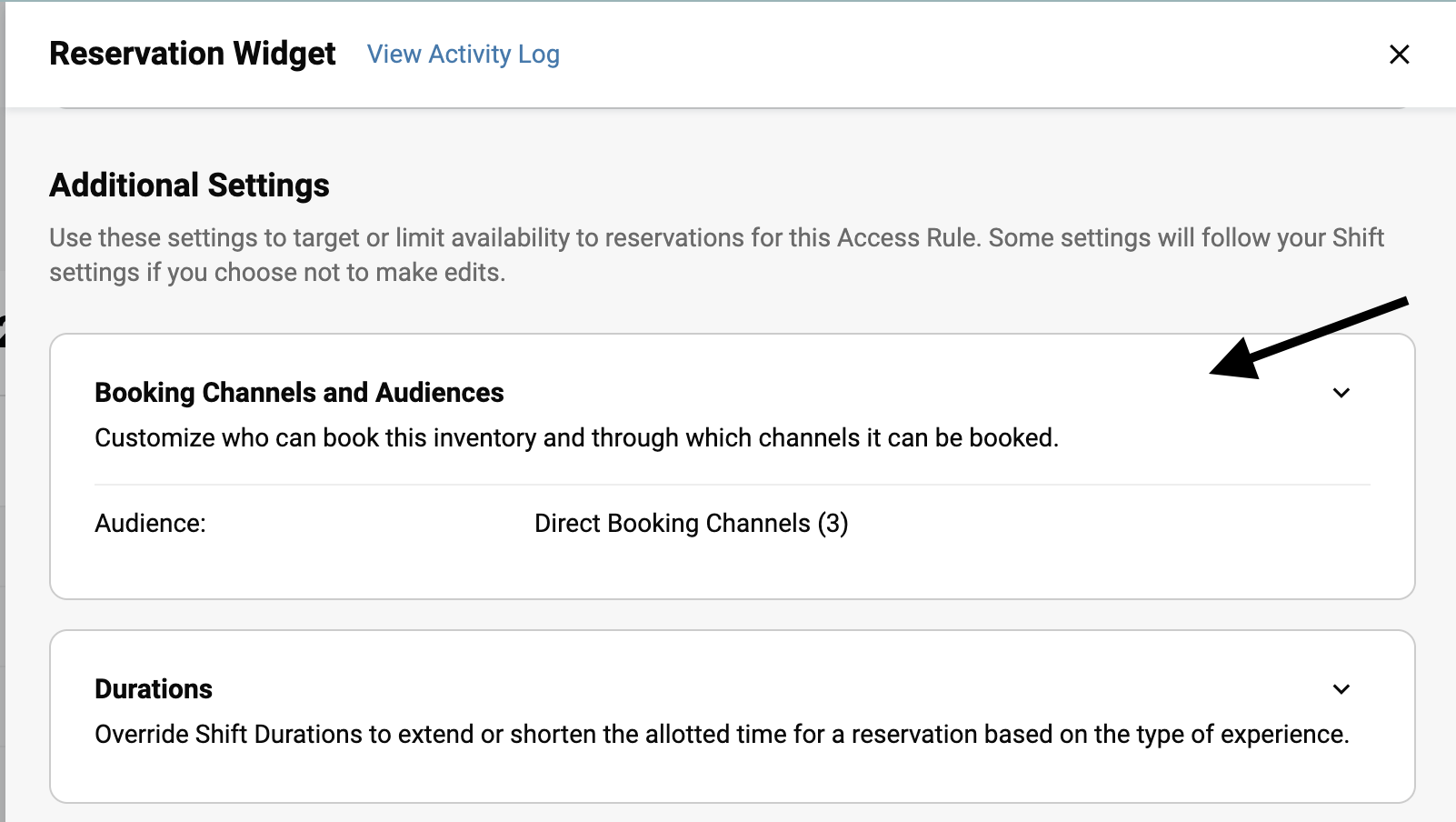
Scroll down to Additional Settings and click on “Booking Channels and Audiences”
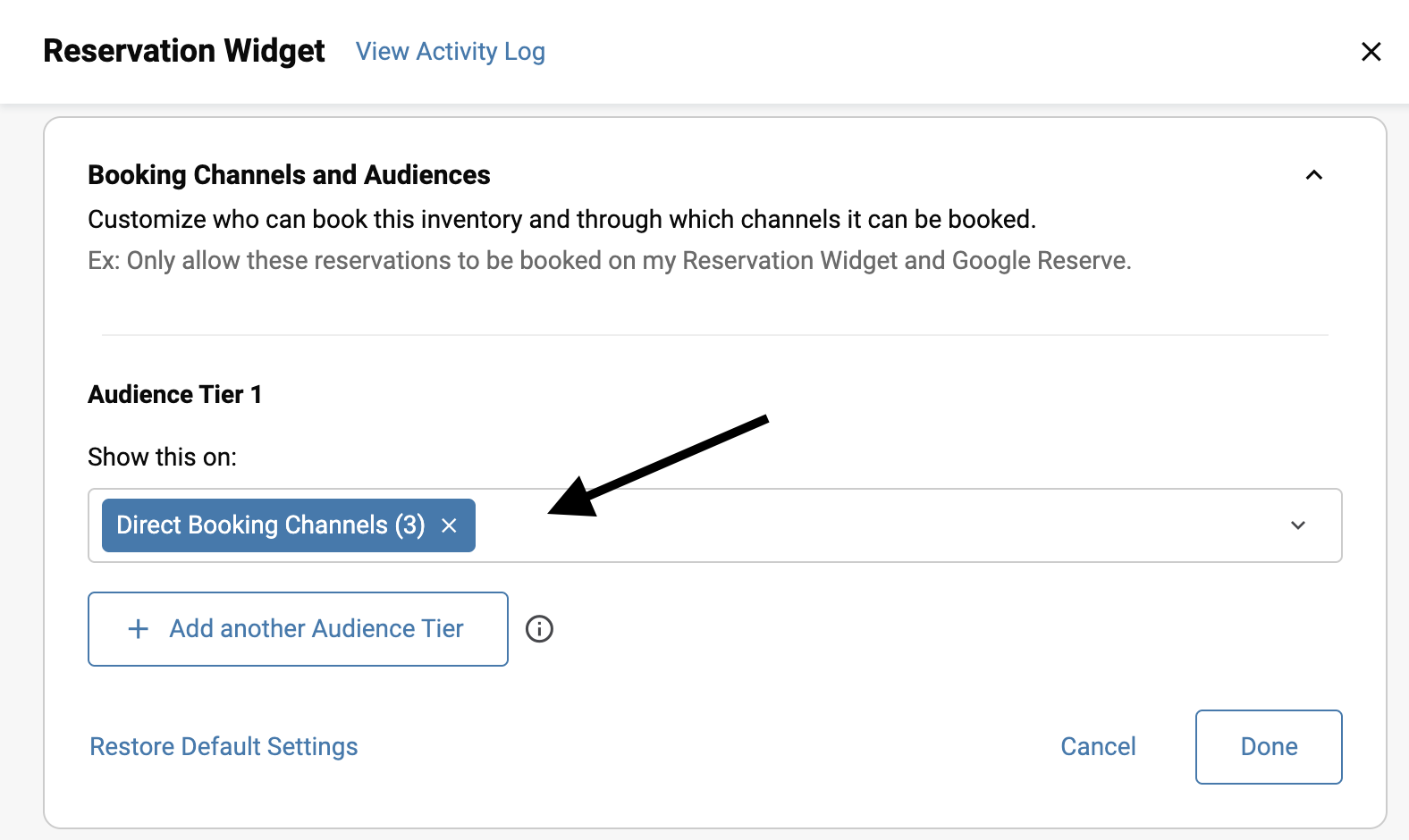
Click on the drop-down that has a blue chip representing your current booking channels and audiences.
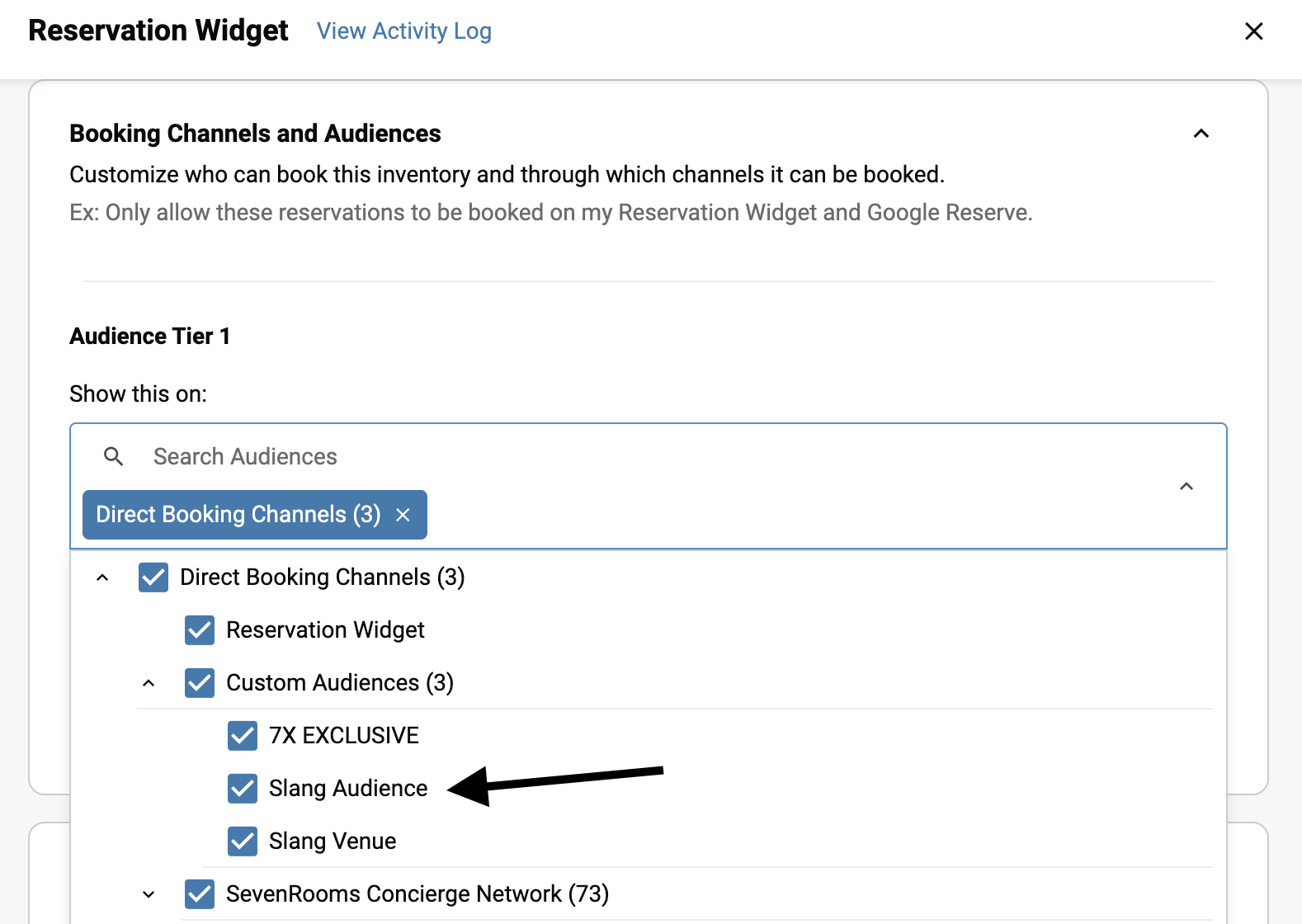
Open the carrot to open the Direct Booking Channels category, and click on Custom Audiences. Ensure the box for Slang Audience is checked to enable booking for this inventory.
Repeat for all other rules.
3. Ensure SMS Confirmation Link Delivery
By default, SevenRooms text messages have ending punctuation that breaks hyperlink functionality.
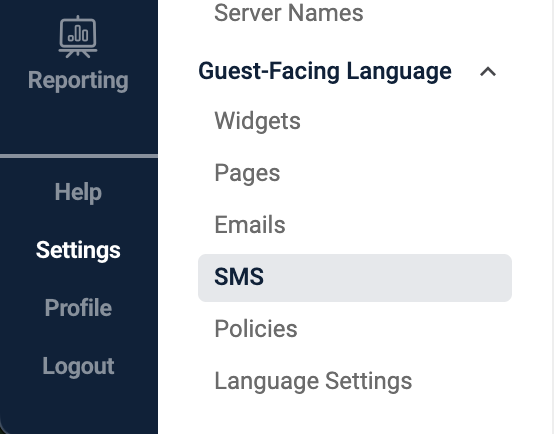
Navigate to Settings and scroll down to Guest Facing Language
Choose SMS
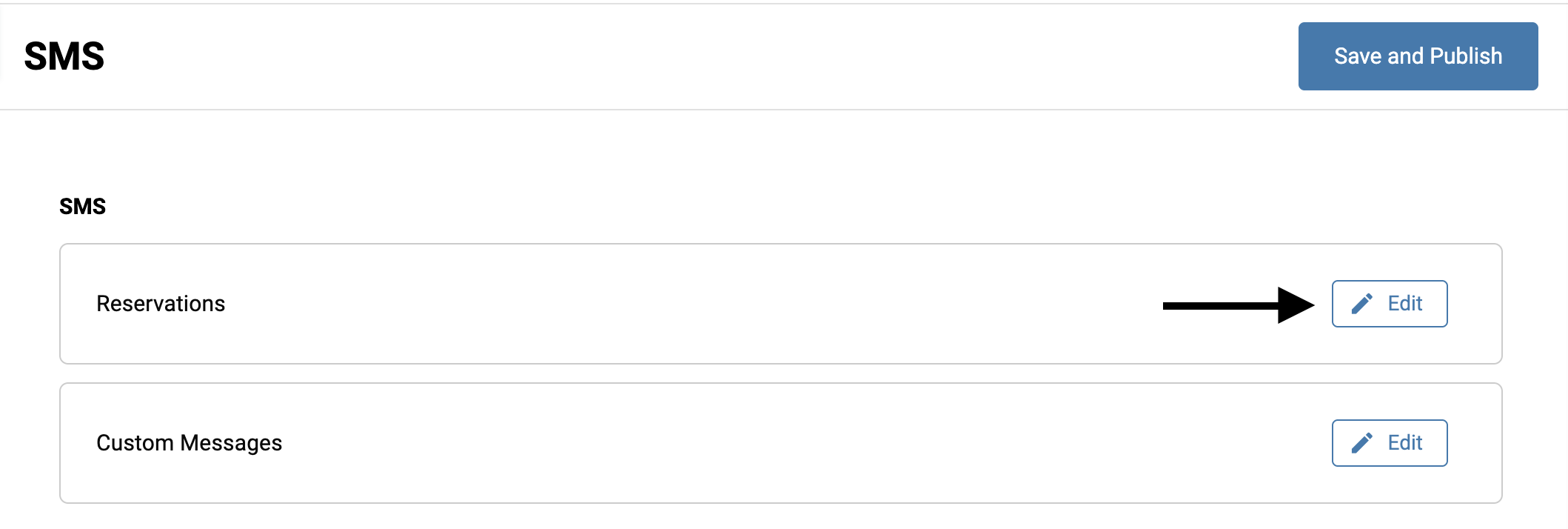
Open the Reservations section by clicking Edit.
Delete ending periods from the text boxes for Confirmation and Updated, and anywhere else you see ending punctuation following
<manage_page>as this will be replaced with a link before being sent to a diner.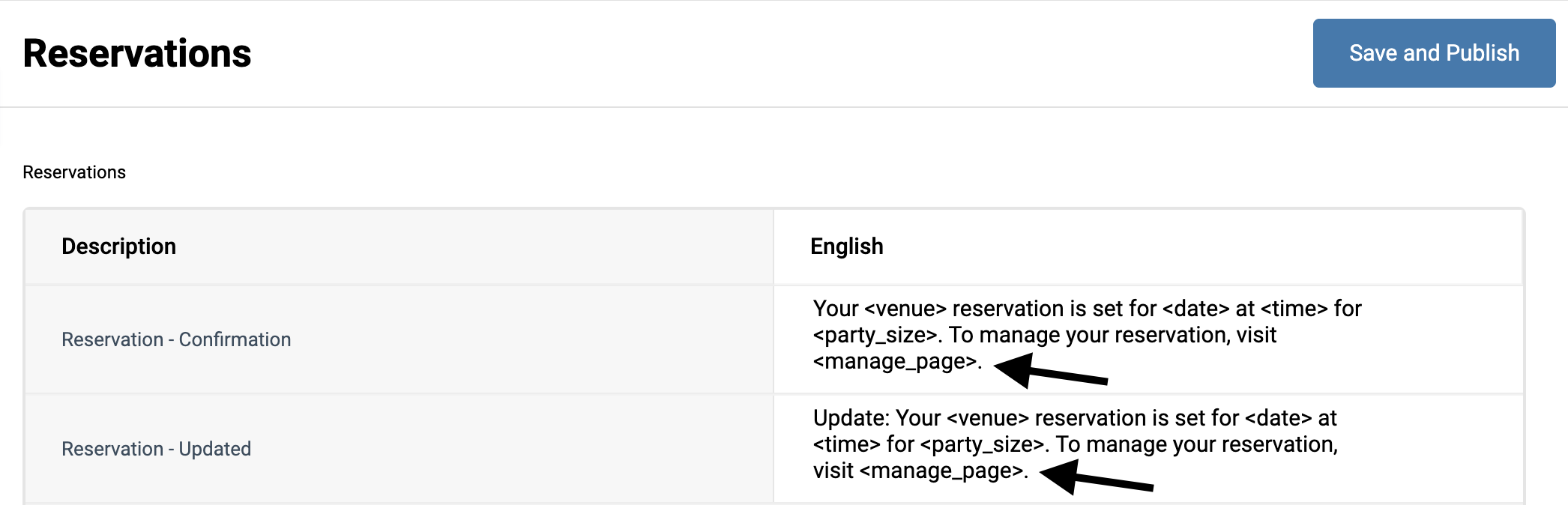
Click on Save and Publish
4. Integrate your Slang Concierge with SevenRooms!
Log into ilove.slang.ai and navigate to the location you would like to set up first.
Make sure you have your API keys from SevenRooms handy.
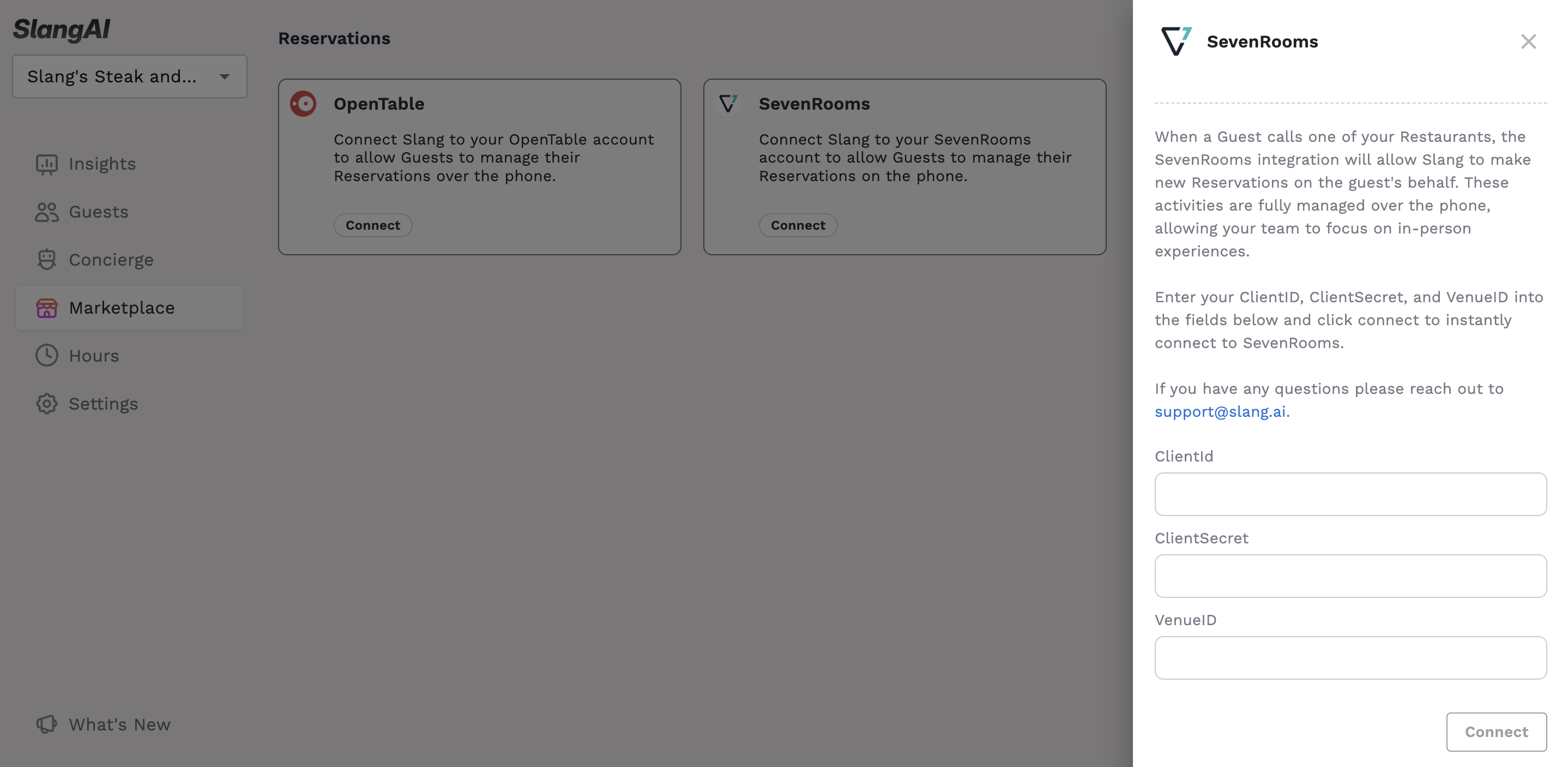
Click on Marketplace in the left-side navigation.
Click on Connect on the SevenRooms tile.
In the drawer, paste in the Client ID, Client Secret, and Venue ID that you were sent for this location.
Click on Connect.
Place a test call to ensure the Slang Audience has access to your inventory!
If you’re connecting more than one location, select the next location from the drop-down on the upper left and repeat the steps above.