Getting Started: Slang + Perfect Venue Integration
Last updated: September 18, 2026
Introduction
Slang's integration with Perfect Venue allows your AI concierge to add event leads directly to Perfect Venue. Superhost is compatible with the Perfect Venue integration.
How does it work?
When you turn on the Slang + Perfect Venue integration (see below for instructions), your AI host is instantly able to:
Gather info for private events: Callers who ask about private events get information about your restaurant's policies, and the concierge asks a series of questions to gather contact and event info.
Text callers a confirmation: After the info is gathered, callers see a confirmation that their information was passed on to your team.
Generate event lead in Perfect Venue: Automatically populate your Perfect Venue account with these event leads.
Connecting your Slang Concierge to Perfect Venue
Log into the Slang dashboard at ilove.slang.ai
Navigate to Slang's Marketplace page. Under Events Management, you'll see the Perfect Venue tile.
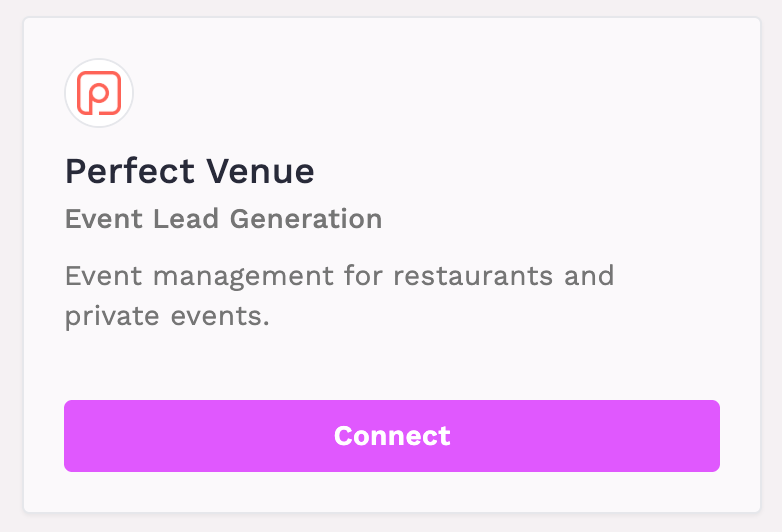
On the Perfect Venue tile, click Connect.
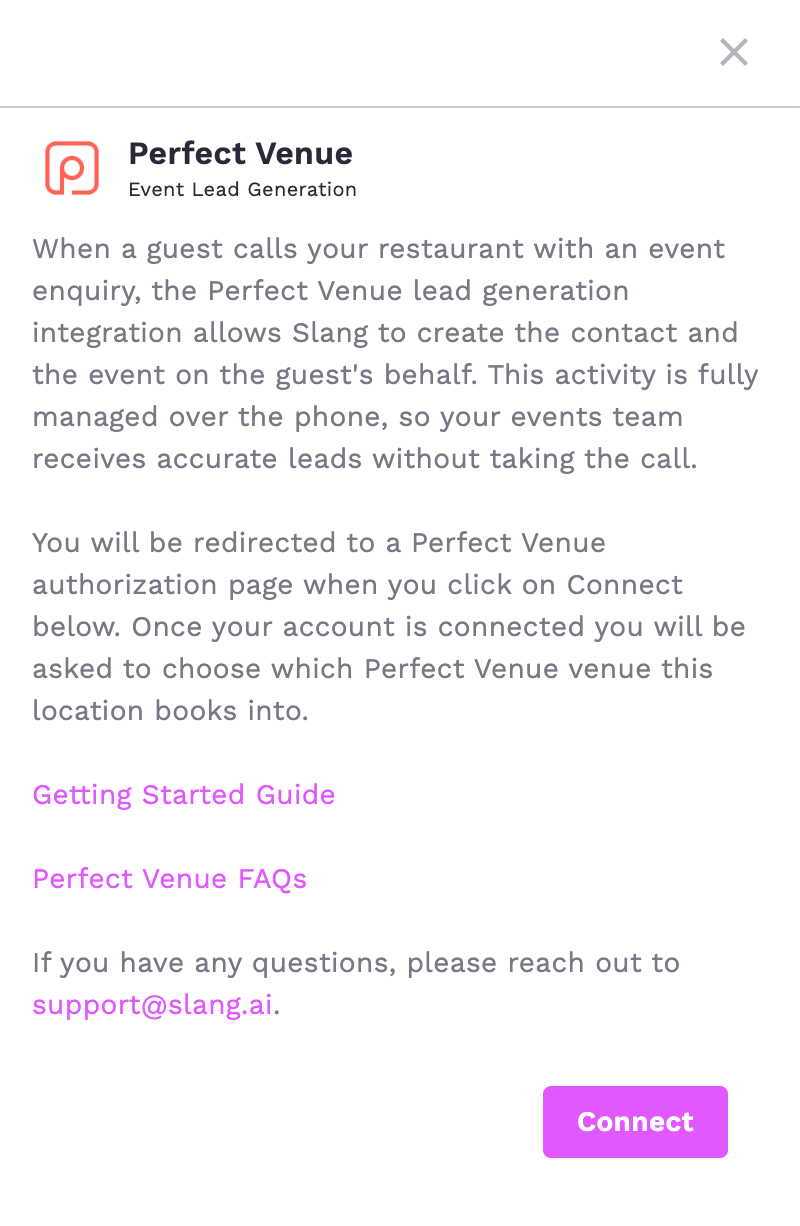
A drawer opens on the right explaining the integration. Click Connect again to be redirected to Perfect Venue's log in screen.
Once you submit your Perfect Venue log in, then you will automatically be returned to the Slang Marketplace.
Finally, click Configure on the tile to select the specific venue (there may be more than one venue available).
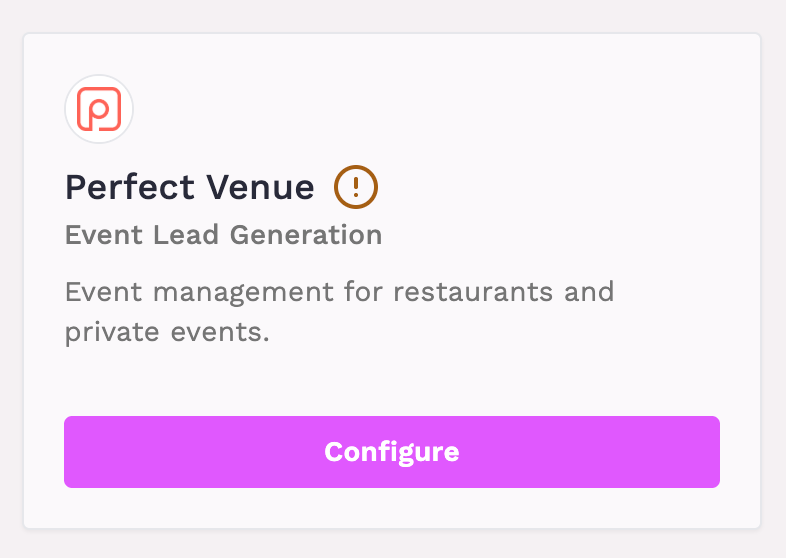
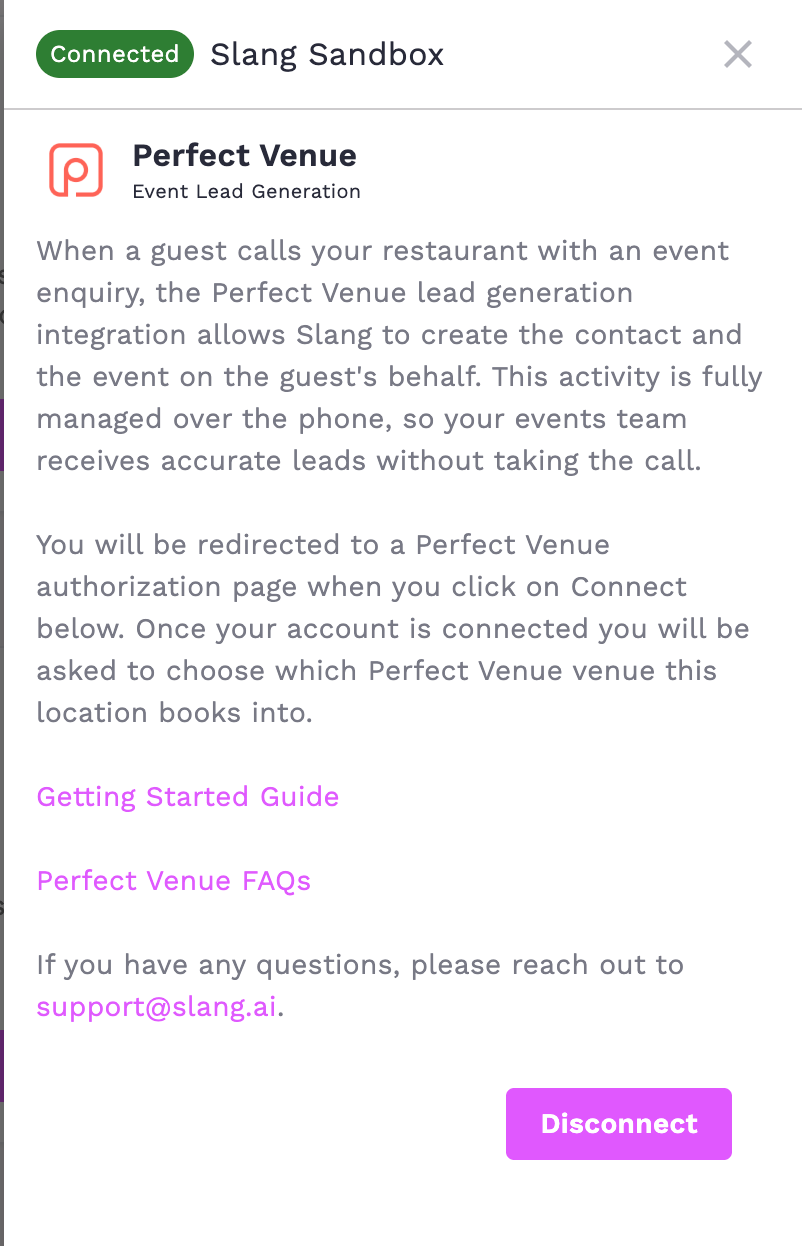
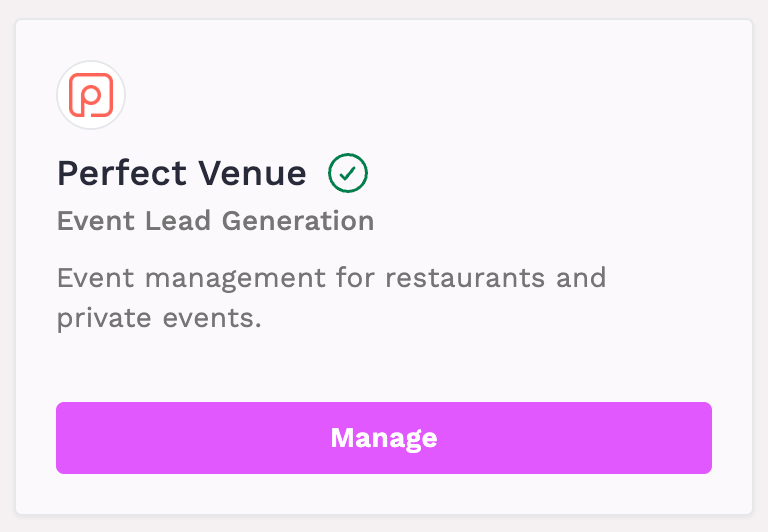
Your Perfect Venue account is connected! The tile now shows a green checkmark and a Manage button.
Next up: configure your Party Size Routing settings.
Setting up your Private Events topic for Perfect Venue
In your Reservations page, open Party Size Routing.
Decide the range of party sizes for Large Parties and/or Private Events at your venue, and select the Perfect Venue integration for the appropriate category.
Let us know how callers needing direct help from your events team should be escalated (email, or forward to staff).
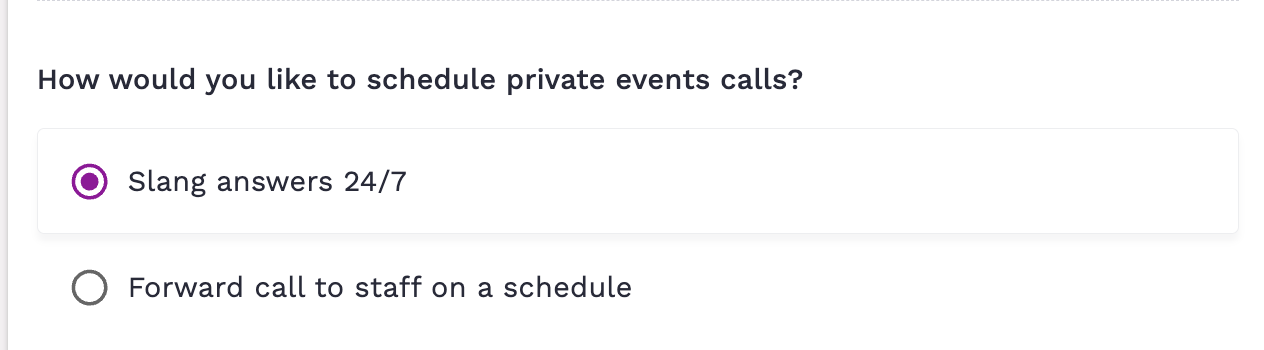
Select if you'd like Slang to answer 24/7, or set up a schedule for when calls go to a member of your events team.
Optional: add a description about your restaurant's events policies.
Let us know if same-day requests should go directly to the venue’s phone.
Hit Save — your concierge can now gather event leads and send them to Perfect Venue.
Highly Recommended: Setting up your Conversation Alerts for Perfect Venue
We acknowledge that there’s a Perfect Venue email automation that won’t function the same for Slang-collected leads via voice. This is due to the fact that we don’t have an email address upon lead collection, it’s added to the contact asynchronously. However, you can still receive an email for each lead via Slang’s Conversation Topic Alerts feature.
If you'd like an email for every Successful Lead submitted to mimic the Perfect Venue automation, go to the Settings page in Slang.
Under the Emails section, make sure the email address that you'd like us to use is saved.
Go to Conversation Topic Alerts and Create one for the Successful Lead tag, choosing your preferred email address.
That's it! The next call that results in a lead in Perfect Venue will come to your inbox with a description and link back to Smart Inbox.
If you don’t have Conversation Alerts, reach out to your account manager or support@slang.ai to upgrade.
How do I turn it off?
Log into the Slang dashboard at ilove.slang.ai
Before you disconnect, go to the Reservations page and select how you'd like Private Events calls to be handled without the integration.
Navigate to Slang's Marketplace page.
On the Perfect Venue tile, click Manage. This reopens the drawer, now showing "Connected" with your venue name.
Click Disconnect.