Call Forwarding
Last updated: June 6, 2026
A guide on how to set up call forwarding with Slang
Introduction
If you're thinking of keeping your current phone number and setting up Slang with call forwarding, there's more that you'll need to know. With the help of this guide and your onboarding specialist, you'll know whether call forwarding or Slang Replace is right for your business.
Important: Call forwarding is configured and managed entirely through your phone carrier, not through Slang. There is no toggle or setting within your Slang account to turn call forwarding on or off. Your public phone number is provided by your phone carrier and remains outside of Slang's system, so any changes to call forwarding must be made directly with your carrier using the methods described below.
Is Call Forwarding Right for You?
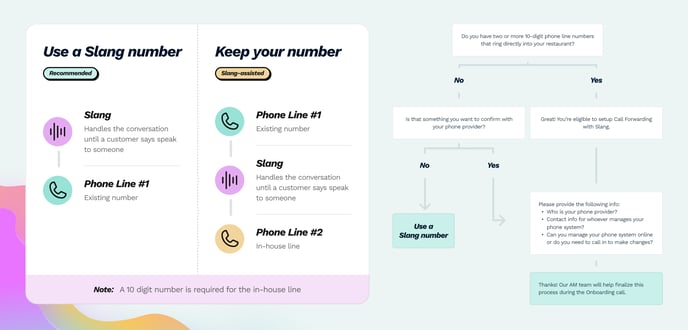
Click here to see a larger version.
Requirements for Call Forwarding
Two distinct 10-digit phone numbers
Primary/Public Number: The number customers call, which forwards into your Slang phone tree
Transfer/Secondary Number: A separate direct‑dial number that physically rings a phone at your location (e.g., host stand, landline) where staff can answer
Authorized user access with your phone provider
Secondary/transfer lines must NOT have call forwarding enabled - If your secondary line forwards calls back to your main number or Slang number, it will create a call loop and prevent transfers from connecting
Warning: The transfer line must NOT have call forwarding enabled. If your transfer number forwards back to Slang or to your public line, it creates a loop where transfers are impossible. When Slang tries to transfer a call, it would forward back to Slang instead of reaching your staff.
Enabling Call Forwarding
We need to see the caller ID of the Guest when a call comes through to Slang!
Tell your provider to ensure they preserve caller ID during call forwarding.
Short Codes
Note: the short code must be dialed on the forwarding line.
To enable call forwarding with these short codes
Dial the short code into the handset
Wait for tone or prompt to enter the Slang number
Wait for confirmation tone
Done!
Don't see your provider? A quick web search for "call forwarding [your provider]" will generally tell you whether there is a short key to activate call forwarding.
Online Portal
Almost every phone provider, business or residential, has an online portal for taking care of billing matters. But did you know that it also provides access to other features?
Only some carriers have articles that provide instructions for where to find these settings in the online portal. But generally, places to look for call forwarding include Voicemail Settings, Features, Services, or Settings.
Spectrum Business customers
can set up time‑based call forwarding:
Log in to your Spectrum Business account
Go to Voice Manager → Preferences → Custom Routing → Call Scheduler
Set a schedule (for example, forward to Slang outside of your staffed hours, and have calls ring normally during open hours)
Once configured, it switches automatically
Spectrum residential customers
can set up forward‑on‑no‑answer so calls ring your staff first and only route to Slang if no one picks up:
Pick up your handset and dial *92
Enter your Slang number
Wait for the confirmation tone
To turn it off: dial *93
Disabling Call Forwarding
When to disable call forwarding: You can temporarily turn off call forwarding to prevent Slang from answering calls during specific hours (e.g., after business hours or during holidays). When forwarding is disabled, calls will ring straight to your original phone line with no Slang greeting. Re‑enable forwarding when you want Slang to resume answering calls.
Short Codes
*73 – Disable call forwarding for AT&T
*73 – Disable call forwarding for Spectrum